
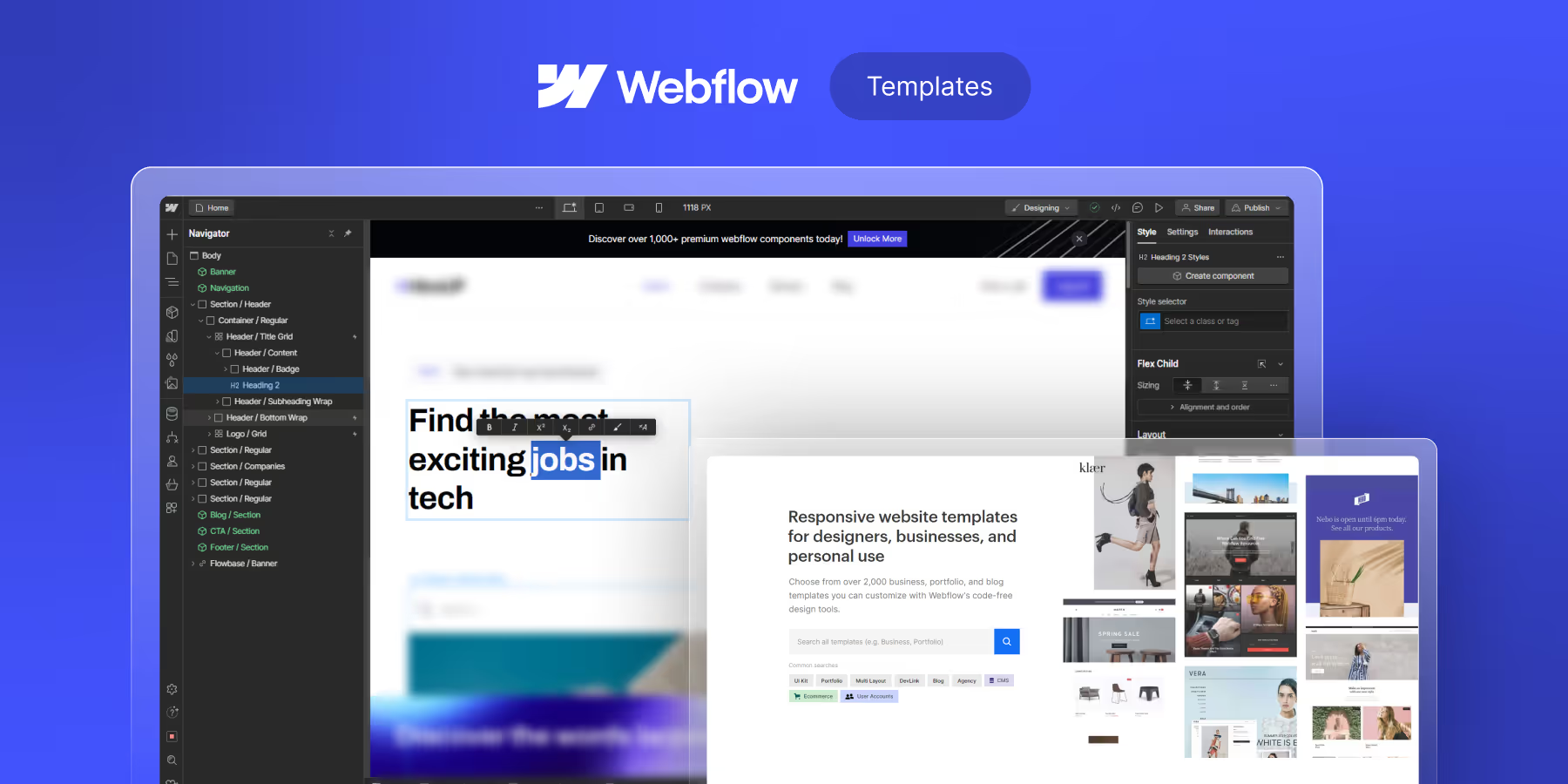
Let me share something that might surprise you: some of the best websites we've built started as templates.
That's not what most agencies want to admit. There's this perception that custom Webflow website design means starting from a blank canvas every single time.
But after building 200+Webflow sites, we've learned that smart template customization often delivers better results faster—and at a fraction of the cost.
Here's the real question: why do some template-based sites look stunning and unique while others scream, "I bought a template"?
The difference isn't the template. It's how you customize it.
A client came to us last quarter with a $3,000 budget and a two-week deadline. Starting from scratch wasn't realistic. We grabbed a premium template and spent 12 hours on strategic customization.
That's the power of knowing how to transform a custom Webflow design template into something that feels completely original.
In this guide, I'm sharing the exact Webflow website customization techniques we use at our agency—the same strategies that let us deliver high-end results on startup budgets and tight timelines.
What Makes Webflow Templates Different?
Webflow templates aren't like WordPress themes that restrict what you can change.
Every element in a Webflow template is fully editable:
- Layout structure and grid systems.
- Typography and font pairings.
- Color schemes and gradients.
- Animations and interactions.
- CMS structure and content types.
- Custom code and integrations.
This flexibility is what makes Webflow template development so powerful. You're not fighting against limitations—you're building on a solid foundation.
Template Categories in 2026
Webflow's marketplace now has over 2,000 templates. Here's how to navigate them:
Our recommendation: For client work, we almost exclusively use premium templates priced between $79 and $149. The quality jump from free to premium is significant—better structure, cleaner classes, and a more thoughtful CMS setup.
When to Use Templates vs. Custom Webflow Design Services
This might cost us business, but here's the truth: not every project needs a fully custom Webflow design service.
Templates make sense when:
- The budget is under $5,000-7,000
- The timeline is 2-4 weeks or less
- The industry has established design patterns (SaaS, agency, portfolio)
- You need to launch fast and iterate later
- The scope is straightforward (5-15 pages)
Custom design is worth it when:
- Brand differentiation is critical
- Complex functionality or integrations are required
- The budget allows for $10,000+ investment
- The timeline is flexible (6-12+ weeks)
- You're entering a crowded market where standing out matters
How to Choose the Right Template (Before You Customize Anything)
Stop Choosing Templates Based on Screenshots
This is the biggest mistake we see. The template looks beautiful in the demo, but once you start customizing, everything falls apart.
Here's what matters when selecting a template for Webflow website customization:
1. Class Structure Quality
Open the template in the Designer and check how the classes are named:
- ✅ Good: hero-section, cta-button-primary, testimonial-card
- ❌ Bad: Div Block 47, Section-2-Copy, text-block-12
Clean class naming means easier customization and maintenance. Messy classes mean you'll spend hours just figuring out what controls what.
2. Style Guide Page
Professional templates include a style guide page with:
- Typography scale (H1-H6, body text, captions)
- Color palette swatches
- Button variations
- Form elements
- Spacing system
If a template lacks this, you'll be hunting through individual elements to change global styles. Not worth the headache.
3. CMS Structure
For content-driven sites, examine the CMS setup:
- How are collections organized?
- Are there multiple reference fields for related content?
- Is the blog structure flexible enough for your needs?
4. Responsive Behavior
Preview the template at every breakpoint. Some templates look great on desktop but fall apart on mobile. Since 60%+ of traffic is mobile, this is non-negotiable.
5. Interactions and Animations
Check if the template includes:
- Scroll-triggered animations
- Hover states on interactive elements
- Page transitions
- Loading animations
Adding these from scratch is time-consuming. Starting with a template that has them is a major time-saver.
Custom Webflow Template Customization: Step-by-Step
Phase 1: Setup and Preparation
Step 1: Duplicate Before You Touch Anything
First rule of Webflow template development: always create a backup.
Before making any changes:
- Duplicate the entire project (Project Settings → Duplicate)
- Name it clearly: "[ProjectName]_Original_Backup"
- Never touch this copy—it's your safety net
We've all seen designers spend hours customizing, accidentally break something fundamental, and have no way to recover. Don't be that designer.
Step 2: Study the Template Structure
Spend 20-30 minutes just exploring before changing anything:
- Click through every page
- Open the Navigator panel and understand the hierarchy
- Identify which elements are symbols vs. regular divs
- Review the Style Guide page
- Check the CMS collections
Understanding the template's logic saves hours of frustration later.
Step 3: Document Your Brand Guidelines
Before customization, gather:
- Logo files (SVG preferred, multiple versions)
- Brand colors (exact hex codes)
- Typography choices (font names, weights needed)
- Image style guidelines
- Voice and tone notes for copy
Having this ready prevents the constant back-and-forth that slows projects down.
Phase 2: Global Style Customization
Step 4: Start with the Style Guide Page
This is where custom Webflow design efficiency lives.
Most premium templates have a dedicated Style Guide page. Here's how to use it:
Typography Updates:
- Select each heading level (H1 through H6)
- Change the font family to your brand font
- Adjust sizes, weights, and line heights
- Update the All H1 Headings class (this propagates site-wide)
Color Palette:
- Locate the color swatches on the style guide
- Update each swatch's background color
- Change text colors on corresponding labels
- These typically use global swatches—change once, update everywhere
Buttons and CTAs:
- Find the button variations (primary, secondary, ghost)
- Update background colors, text colors, border styles
- Modify hover states
- Adjust padding and border radius to match your brand
Pro tip: We spend 60% of our customization time on the Style Guide page. Getting this right means the entire site updates automatically.
Step 5: Update Global Symbols
Symbols in Webflow are reusable components. Common symbols include:
- Navigation header
- Footer
- CTA sections
- Testimonial cards
- Pricing tables
When you edit a symbol, every instance updates. This is powerful—but also dangerous. Make intentional changes and preview the impact across pages.
Phase 3: Page-Level Customization
Step 6: Prioritize High-Impact Pages
Don't customize every page equally. Focus on:
- Homepage: First impression, highest traffic
- Primary service/product pages: Where conversions happen
- Contact/CTA pages: Where leads convert
- About page: Builds trust and credibility
- Blog listing: If content marketing matters
Step 7: Replace Content Strategically
For each priority page:
Headlines:
- Replace the template copy with your actual messaging
- Ensure headlines follow your brand voice
- Keep SEO keywords in H1 and H2 tags naturally
Images:
- Replace stock photos with brand imagery
- Maintain the aspect ratios the template expects
- Optimize images before uploading (WebP format, compressed)
- Update alt text for accessibility and SEO
Body Copy:
- Rewrite all placeholder text
- Match your brand's tone (formal vs. conversational)
- Include relevant keywords naturally
Step 8: Customize Layout Structure
Templates provide structure, but don't be afraid to modify it:
- Reorder sections: Drag sections in the Navigator to change flow
- Delete unnecessary sections: Less is often more
- Duplicate effective sections: If a section works, use it elsewhere
- Add new sections: Create original sections where templates fall short
The 70/30 Rule: Aim to keep roughly 70% of the template's structural decisions while customizing 30% for uniqueness. This balances efficiency with originality.
If you're working with a Webflow CMS template, the most important customization step is auditing the CMS Collections before you start changing any design. Open the CMS panel and check what Collections exist, what fields each one has, and which page templates they're bound to. Renaming or deleting CMS fields after you've added content will break the bindings and require manual cleanup. Map out the CMS structure first, then customize the design around it.
Phase 4: Advanced Customization Techniques
Step 9: Customize Interactions and Animations
This is where Webflow's custom design services really shine:
Scroll Animations:
- Adjusting timing and easing curves
- Modify trigger points
- Add parallax effects to images
Hover States:
- Customize button hover colors and transitions
- Add card lift effect on hover
- Implement image zoom on hover
Page Transitions:
- Add fade-in effect when pages load
- Create smooth transitions between pages
- Implement scroll-triggered reveals for sections
Word of caution: Don't over-animate. Subtle, purposeful animations enhance UX. Excessive animations can feel gimmicky and slow down your site.
Step 10: CMS Customization for Dynamic Content
If your site uses Webflow CMS:
- Modify collection fields: Add custom fields for your content needs
- Update collection templates: Customize how individual items display
- Create filtered views: Build collection lists with specific filters
- Set up dynamic embeds: Display collection data dynamically throughout the site
Example: A client needed case studies with video testimonials. The template had a basic portfolio collection. We added custom fields for video embeds, client logos, industry tags, and results metrics—transforming generic portfolio items into rich case studies.
Step 11: Implement Custom Code (When Needed)
Sometimes templates need functionality they don't have:
Common custom code additions:
- Cookie consent banners
- Custom form validation
- Third-party tool integrations (chat widgets, analytics)
- Advanced scroll effects
- Custom cursor interactions
Where to add custom code:
- Page-specific: In Page Settings under Custom Code
- Site-wide head: In Project Settings → Custom Code → Head
- Site-wide footer: In Project Settings → Custom Code → Footer
Phase 5: Mobile Optimization
Step 12: Perfect the Mobile Experience
Templates are responsive, but "responsive" doesn't mean "optimized".
Check each breakpoint:
- Desktop (1920px, 1440px)
- Laptop (1280px)
- Tablet (991px and below)
- Mobile Landscape (767px and below)
- Mobile Portrait (478px and below)
Common mobile fixes:
- Reduce font size for readability
- Stack columns that were side-by-side
- Adjust padding and margins
- Hide decorative elements that clutter small screens
- Ensure tap targets are large enough (minimum 44px)
Test on real devices: The Webflow preview is helpful, but always test on actual phones and tablets before launch.
Common Template Customization Mistakes
Mistake 1: Changing Classes Instead of Creating New Ones
When you change a class that's used elsewhere, you affect every element that uses that class. Sometimes that's intentional. Often it's not.
Solution: Create combo classes or new classes for unique elements. Leave base classes intact for consistency.
Mistake 2: Ignoring the Style Guide
Skipping straight to page editing means making the same changes dozens of times instead of once.
Solution: Always start with global styles. Twenty minutes on the Style Guide saves hours later.
Mistake 3: Over-Customizing
Adding too many custom sections, animations, and effects can result in a Frankenstein site that feels disjointed.
Solution: Maintain design consistency. If the template uses certain animation styles, stick with them throughout.
Mistake 4: Forgetting About Performance
Heavy images, excessive animations, and third-party scripts can tank your site speed.
Solution: Optimize images, limit animations, and audit scripts regularly. Check Core Web Vitals after customization.
Mistake 5: Not Testing Thoroughly
Launching without cross-browser and cross-device testing can lead to embarrassing issues.
Solution: Test on Chrome, Safari, Firefox, and Edge. Testing on iOS and Android. Test on multiple screen sizes.
Best Webflow Templates by Type: Portfolio, Agency, SaaS & E-commerce
Based on our experience with Webflow template development, here are the templates that we customize well:
Best Webflow Portfolio Template
A strong Webflow portfolio template does three things well: it puts work front and center, loads fast on mobile, and gives you a CMS Collection for projects so you can add new work without rebuilding the page. Look for templates where the project grid is CMS-driven (not hardcoded), the case study page has fields for images, description, role, and results, and the homepage hero doesn't rely on a full-screen video (which tanks mobile performance).
What to customize first on a Webflow portfolio template: replace the color tokens in the Style Guide page, swap out the typeface in global body and heading styles, and update the CMS Collection with 2–3 real projects before you judge the layout. Most portfolio templates look generic until real content is in them.
Best Webflow Agency Template
Webflow agency templates are typically the most structurally complex templates on the marketplace they include service pages, team pages, case study layouts, and contact forms all pre-wired together. The key thing to evaluate before cloning one: check whether the case study CMS Collection has fields for client name, industry, results, and a rich text body. If the template hardcodes case study content rather than pulling from CMS, customization will be significantly more work.
Agency templates also tend to have the most interactions and animations. Run the live preview on a mobile device (not just desktop) before choosing heavy IX2 animations that look polished on desktop often cause janky scroll behavior on lower-end phones.
Best Webflow SaaS Template
Webflow SaaS templates are designed around a specific conversion flow: hero → features → social proof → pricing → CTA. The best ones have a pricing section that's CMS-driven (so you can update tiers without going into the Designer), a features section that supports icons or illustrations alongside text, and a testimonials section with a CMS Collection so reviews can be added without code.
One thing most SaaS templates don't include out of the box: a proper FAQ section with FAQPage JSON-LD schema. If you're running a SaaS site and want to appear in AI search results (ChatGPT, Perplexity), you'll want to add this manually after cloning. Add a rich text embed field to the CMS and drop in the JSON-LD it takes about 20 minutes and significantly improves AEO visibility.
Best Webflow Ecommerce Template
Webflow ecommerce templates are built on top of Webflow's native Ecommerce plan and include product pages, category pages, cart, checkout, and order confirmation pages pre-designed. Before choosing one, confirm it includes: a product CMS Collection with fields for images (multi-image), variants, description, and SKU; a category/collection page with filtering; and a sticky add-to-cart button on mobile.
One limitation to know before you clone: Webflow ecommerce templates are not compatible with the CMS plan — you need an Ecommerce plan ($29/month minimum) to use them. If you only need a simple product showcase (no cart/checkout), a standard CMS template with a custom "Products" Collection is often a better and cheaper approach.
Conclusion
Custom Webflow design doesn't have to mean starting from zero. It means making intentional choices that transform a foundation into something that feels yours completely.
Whether you're a business owner trying to launch quickly, a freelancer expanding your service offerings, or a marketing team that needs to move fast, Webflow template development skills will save you time, money, and headaches.
The best part? Every template you customize teaches you something new. Your fifth customization will be twice as fast as your first. Your tenth will feel effortless.
Ready to transform your next Webflow project? Start with a quality template, follow the process we've outlined, and watch a generic starting point become something uniquely yours.
And if you'd rather have experts handle the heavy lifting?
Let's talk. We've turned template customization into an art form—and we'd love to do the same for your project.
FAQs
1. How much can I customize a Webflow template?
Everything. Unlike other platforms, Webflow templates give you complete control over every element—layout, typography, colors, animations, CMS structure, and custom code. The only limitation is your skill level and creativity.
2. Do I need coding knowledge for Webflow website customization?
For 80-90% of customization, no coding is needed. Webflow's visual editor handles typography, layouts, colors, and basic interactions. Custom code is only necessary for advanced functionality like third-party integrations or complex animations.
3. How do I make my template look unique and not "template-y"?
Focus on these high-impact changes:
- Replace all stock photos with custom imagery
- Customize typography (different font combinations)
- Modify the color palette significantly
- Add unique animations and interactions
- Rewrite all copy in your brand voice
- Adjust spacing and layout proportions
4. Can I combine elements from multiple templates?
Technically, yes, but proceed carefully. Different templates use different class naming conventions and structural approaches. Combining them often creates conflicts and maintenance nightmares. It's better to choose one template and build custom sections where needed.
5. What's the best way to learn webflow template development?
Start with Webflow University's free courses—they're excellent. Then practice by customizing free templates before working on client projects. Join Webflow communities on Discord and Twitter to learn from other designers.

.jpg)