
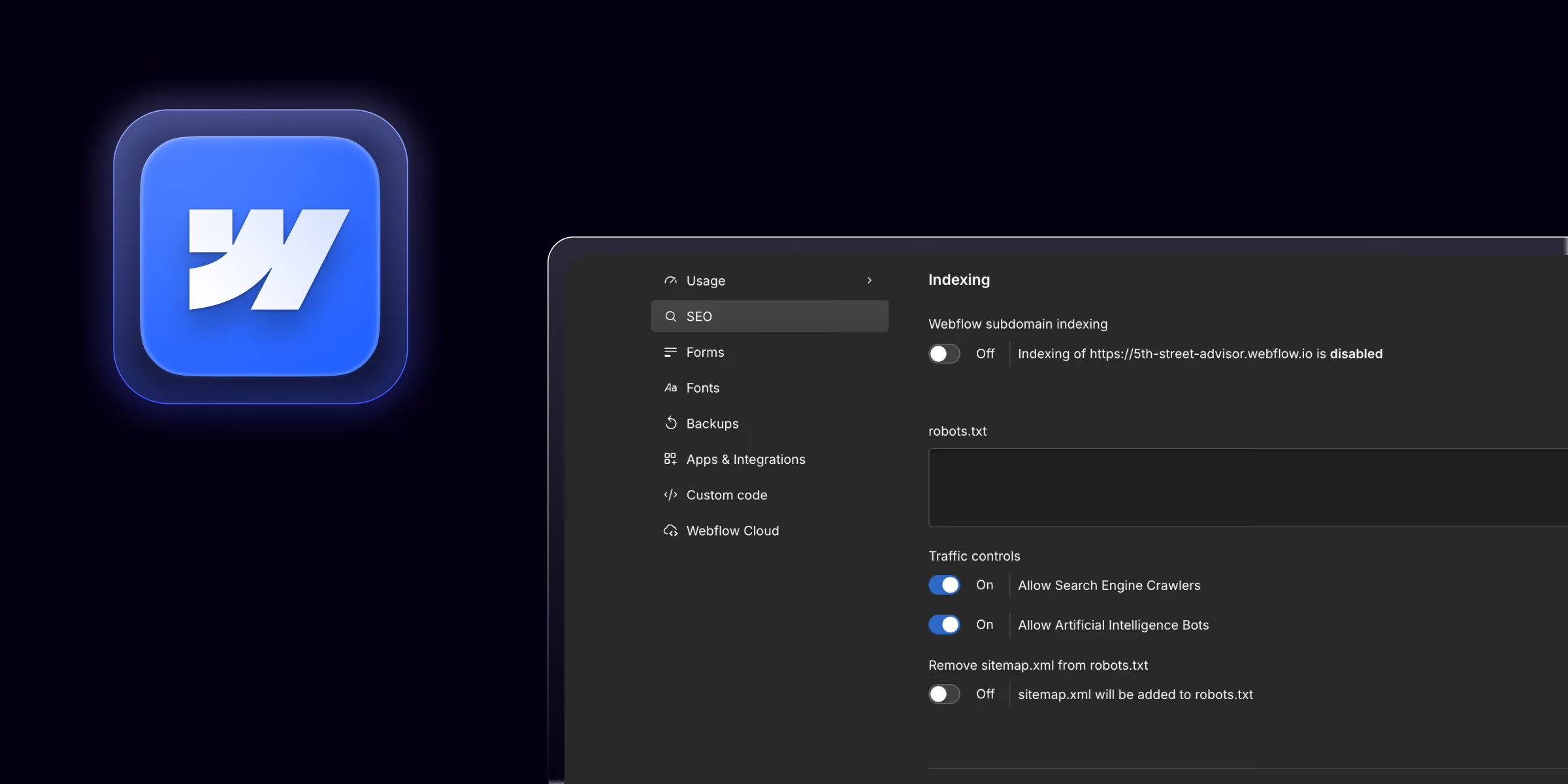
Webflow SEO settings live in three places. Site Settings hold your sitemap, robots.txt, global canonical tag, and search engine controls. Page Settings hold each page's title tag, meta description, Open Graph tags, and slug. The Designer holds on-page settings like heading tags and image alt text. Set these up well, connect Google Search Console, and add 301 redirects. Then publish, since SEO settings only go live after you publish.
Webflow gives you strong SEO controls with no plugins. But the settings sit in a few different places, so they are easy to miss. This webflow seo guide walks through every setting, step by step. You will learn where each one lives and how to set it up right.
We run SEO for Webflow sites at theCSS Agency. This is the exact setup our team uses on client projects.
Is Webflow Good for SEO?
Yes. Webflow produces clean, fast, semantic code that search engines read with ease. It gives you full control over titles, meta tags, URLs, and redirects. It also builds your sitemap and handles SSL for you. The tools are strong, so the results depend on how well you use them.
Where to Find SEO Settings in Webflow
Before we start, here is the map. Your webflow seo settings live in three areas.
- Site Settings: site-wide controls like sitemap, robots.txt, and canonical.
- Page Settings: per-page controls like title tag and meta description.
- The Designer: on-page items like headings and image alt text.
We will cover each area in order.
Site-Wide SEO Settings
Open your project, then go to Site Settings and click the SEO tab. These settings apply to the whole site.
Auto-Generate Your Sitemap
A sitemap lists your pages so search engines can find them. Webflow can build it for you. Turn on the auto-generate sitemap option in the SEO tab. Webflow then keeps your webflow sitemap updated as you add pages.
If you need full control, turn the option off and paste your own sitemap. Most sites should leave auto-generate on.
Edit Your robots.txt
The robots.txt file tells search engines which areas to crawl. Webflow gives you an editor in the SEO tab. Use it to block pages you do not want indexed, like a thank-you page. Keep your webflow robots.txt simple, since one wrong rule can hide your whole site.
Set a Global Canonical Tag
A canonical tag tells search engines the main version of a URL. This prevents duplicate content issues. Add your global webflow canonical tag in the SEO tab, using your primary domain. This points all pages to the correct domain by default.
Control Subdomain Indexing
Webflow gives every site a staging URL on the webflow.io subdomain. You do not want that staging URL to show in search. Turn on the option to disable subdomain indexing. This keeps only your live domain in search results.
Connect Google Search Console
Google Search Console shows how your site performs in search. Webflow lets you verify your site from the SEO tab. Add the verification and connect your site. Then submit your sitemap inside Search Console.
Page-Level SEO Settings
Each page has its own settings. Open a page, then click the gear icon to open Page Settings. Scroll to the SEO and Open Graph sections.
Title Tag
The title tag is the clickable headline in search results. Write a clear webflow title tag with your main keyword near the front. Keep it under about 60 characters so it does not cut off. Each page needs a unique title.
Meta Description
The meta description is the short text below the title in search. Write a webflow meta description that explains the page and invites a click. Keep it under about 155 characters. It does not rank the page, but it lifts your click rate.
Open Graph Settings
Open Graph tags control how your page looks when shared on social media. Set the webflow open graph tag, description, and image for each page. A good preview image raises clicks from social posts. You can reuse the title and meta or write custom social text.
URL Slug
The slug is the last part of the page URL. Keep it short, lowercase, and clear. Use your keyword and separate words with hyphens. A clean slug helps both users and search engines.
Sitemap Indexing
Page Settings let you include or exclude a page from your sitemap. Keep important pages included. Exclude pages you do not want in search, like a thank-you or a private page. You can also set a page to noindex when needed.
CMS Collection SEO Settings
Blog posts and other CMS items share one template. You set SEO once, and it applies to every item. This is a powerful part of webflow seo optimization.
Bind Title and Meta to CMS Fields
Open the collection page settings. In the title tag and meta description fields, connect them to CMS fields. Use the field picker to bind the post title and summary. Now every post gets its own title and description automatically.
Dynamic Open Graph Images
You can also bind the Open Graph image to a CMS field. Connect it to each post's main image. So every post shares with its own preview image, with no manual work per post.
On-Page SEO Settings in the Designer
Some SEO settings live on the page itself, not in a settings panel. Set these in the Designer.
Heading Structure
Headings show the structure of your content. Use one H1 per page for the main title. Then use H2 and H3 in order, with no skipped levels. In Webflow, select a text element and set its tag in the settings panel.
Image Alt Text
Alt text describes an image for search engines and screen readers. Select an image and add clear webflow alt text in its settings. For CMS images, bind the alt text to a field so each item is covered.
Descriptive Link Text
Link text should describe the target page. Avoid vague text like Click Here. Use text like View Pricing Plans instead. Clear link text helps both users and search engines.
Semantic HTML Tags
Semantic tags tell search engines what each section is. Use nav, header, main, and footer for their real roles. In Webflow, set these tags on your layout elements for a cleaner structure.
Technical SEO Settings
These settings keep your site healthy for search engines.
301 Redirects
A 301 redirect sends an old URL to a new one. Add redirects in the Publishing tab of Site Settings. Use them whenever you change or remove a URL, so you keep your rankings and avoid broken links.
Canonical Tags
Beyond the global canonical, you can set a page canonical when needed. Use it to point a duplicate page to the main version. This is common for filtered or similar pages.
Schema Markup
Schema helps search engines understand your content. It can also earn rich results, like FAQ or review stars. Add schema with a small JSON-LD snippet in the page or site custom code.
SSL and HTTPS
SSL keeps your site secure and is a ranking signal. Webflow turns on SSL for hosted sites by default. Make sure it is enabled so your site loads over HTTPS.
Minified Code
Smaller code loads faster, which helps SEO. Webflow minifies your code and offers minify options in the publishing settings. Keep these on for the fastest pages.
Performance Settings That Affect SEO
Speed is a ranking factor, so performance settings matter. Follow these steps in Webflow.
- Compress and size your images before upload.
- Use the WebP format and lazy loading for media.
- Limit your fonts to two families and few weights.
- Keep custom code and heavy scripts to a minimum.
Faster pages improve Core Web Vitals and your search rankings.
How to Connect Google Analytics and Search Console
Data guides your SEO work. Connect these two free tools early.
- Add your Google Analytics 4 tag in Site Settings, under the integrations or custom code area.
- Verify your site in Google Search Console from the SEO tab.
- Submit your sitemap inside Search Console.
- Check both tools each month to track clicks, impressions, and issues.
Webflow SEO Settings Checklist
Use this checklist before every launch.
- Auto-generate sitemap is on.
- robots.txt is set and does not block key pages.
- Global canonical tag points to your live domain.
- Subdomain indexing is disabled.
- Every page has a unique title tag and meta description.
- Open Graph title, description, and image are set.
- CMS title, meta, and Open Graph are bound to fields.
- One H1 per page, with headings in order.
- Every image has alt text.
- 301 redirects are in place for changed URLs.
- Google Analytics and Search Console are connected.
- The site is published so the settings go live.
Common Webflow SEO Mistakes
Avoid these frequent errors.
- Forgetting to publish. SEO settings only go live after you publish.
- Duplicate titles. Every page needs a unique title tag.
- Missing meta on CMS pages. Bind the fields so every post is covered.
- Indexing the webflow.io URL. Disable subdomain indexing.
- No redirects after a change. Add 301 redirects to protect rankings.
- Skipped heading levels. Keep headings in order for structure.
Conclusion
Webflow SEO settings give you strong control across three areas. Set your site-wide options in the SEO tab, your page options in Page Settings, and your on-page items in the Designer. Bind your CMS fields, add redirects, and connect Google tools. Then publish so everything goes live.
Work through the checklist above before each launch. Small, correct settings add up to a site that ranks and grows. Set them once, and keep them current as your site changes.
Want experts to handle your Webflow SEO the right way? theCSS Agency offers Webflow SEO and AEO services for Webflow sites. Book a call to get a clear plan for better rankings.
FAQs
1. Where are SEO settings in Webflow?
They live in three places. Site Settings hold the sitemap, robots.txt, and canonical. Page Settings hold the title tag and meta description. The Designer holds headings and alt text.
2. How do I add a meta description in Webflow?
Open a page and click the gear icon to open Page Settings. Scroll to the SEO section and write your meta description. Keep it under about 155 characters.
3. Does Webflow create a sitemap automatically?
Yes. Turn on the auto-generate sitemap option in the SEO tab. Webflow then updates your sitemap as you add or remove pages.
4. How do I set SEO for CMS pages in Webflow?
Open the collection page settings and bind the title tag, meta description, and Open Graph fields to CMS fields. Every item then gets its own SEO data.
5. How do I stop the webflow.io URL from showing in search?
Turn on the option to disable subdomain indexing in the SEO tab. This keeps only your live domain in search results.
6. Do Webflow SEO settings work before publishing?
No. SEO settings only go live after you publish the site. Always publish after you change a setting, then test on the live domain.
7. How do I add schema markup in Webflow?
Add a JSON-LD snippet in the page or site custom code, in the head section. Use it for FAQ, product, or article schema to help search engines.


.jpg)
_.jpg)