
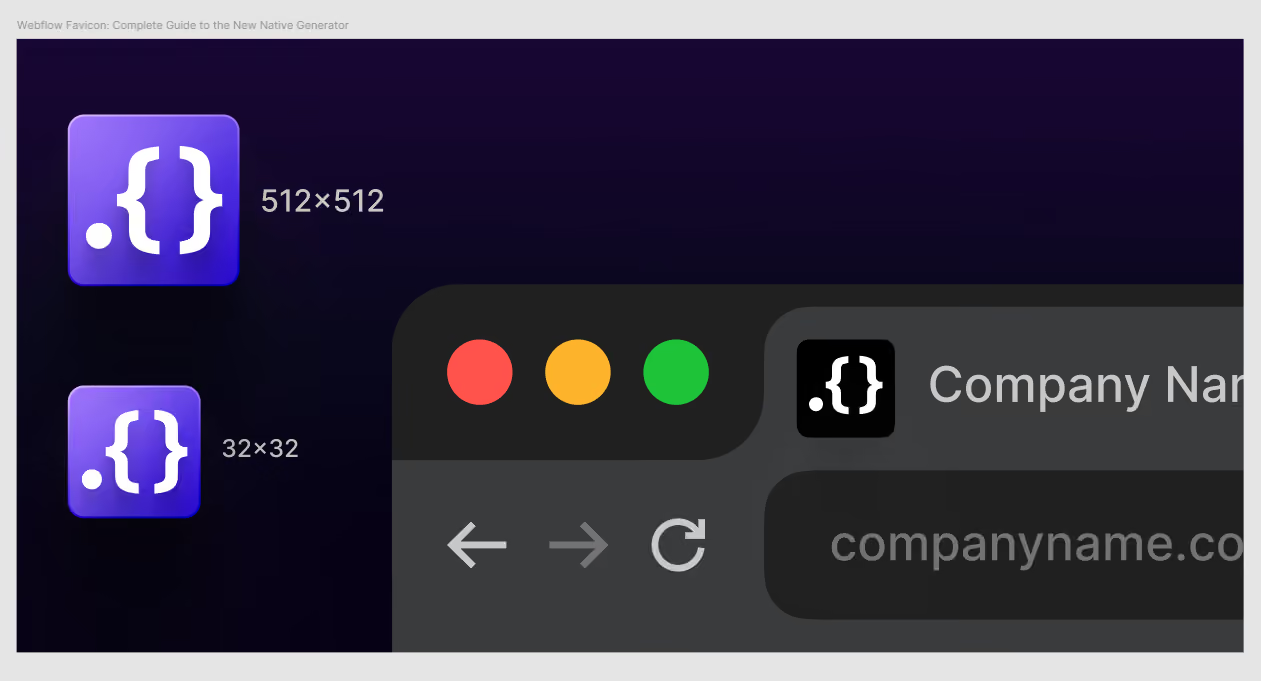
Webflow now has a native favicon generator built into Site Settings. Upload one image and an Update icons popup lets you choose which icons to update Favicon - light (32×32 and 48×48), Favicon - dark (32×32), and Webclip (180×180, 192×192, and 512×512). To use the same image for all three, keep all boxes checked and click Apply.
To use different images for each, upload separately and uncheck the boxes you don't want to overwrite. For per-page favicons, the 16×16 legacy size, or Microsoft Tile icons, use page-level custom code (covered below).
A favicon is the small icon that appears in browser tabs, bookmarks, search results, and home-screen webclips. On May 5, 2026 Webflow rolled out a native favicon generator inside Site Settings. You upload an image, an Update icons popup asks which icons to apply it to, and Webflow generates every size for the boxes you check. The same flow lets you use one image for everything, or upload separate images for light mode, dark mode, and the iOS webclip.
For most projects, that's the entire favicon setup. This guide covers the new native flow, when you still need custom code (per-page favicons, the 16×16 legacy size, Microsoft Tile icons, multi-resolution Apple touch icons), and how to fix the "my favicon isn't showing" problem when it inevitably happens.
How to Add a Favicon in Webflow (the new native flow)
Three steps for the basic case (one image, all icon types).
1. Prepare your source image
- Format: PNG with transparent background (preferred). Webflow also accepts JPG, GIF, ICO, and SVG. SVG uploads are auto-converted to PNG at each size for browser compatibility (you don't get a true vector favicon it's rasterized once at upload, not at render time).
- Size: 512×512 PNG, square aspect ratio
- Why 512×512: the largest size Webflow generates is 512×512 (used for the webclip / PWA / app icon). Starting smaller means a blurry 512×512 output. Square aspect ratio matters because Webflow crops non-square sources to square sometimes badly.
2. Upload in Site Settings
- Open your Webflow project.
- Go to Site Settings → General
- Scroll to the Icons section
- Click Upload and select your source image
- The Update icons popup appears with three checkboxes all checked by default
- Click Apply to use this one image for Favicon (light), Favicon (dark), and Webclip
3. Publish Site
Favicons only appear live after publish. Hit Publish, confirm the domains, wait 30 seconds for the CDN to update, then test in an incognito window.
That's the basic case. Webflow inserts the right `<link rel="icon">`, `<link rel="apple-touch-icon">`, and `prefers-color-scheme` tags automatically no manual code needed.
How to Upload Different Images for Light, Dark, and Webclip
The Update icons popup is where the per-mode magic happens. Each time you upload an image, you choose which icon types it should overwrite. To use a different image for each mode, upload three separate times, checking only the relevant box each time.
Step 1: Light mode favicon
- Upload your light-mode source image (the standard, designed-for-light-tab-bar version)
- In the Update icons popup, uncheck Favicon - dark and Webclip
- Leave only Favicon - light checked
- Click Apply
Webflow now uses this image to generate the 32×32 and 48×48 light-mode favicons only. Your dark favicon and webclip remain unchanged.
Step 2: Dark mode favicon
- Upload your dark-mode source image (contrast-inverted or light-colored variant designed for dark tab bars)
- In the Update icons popup, uncheck Favicon - light and Webclip
- Leave only Favicon - dark checked
- Click Apply
Webflow updates only the 32×32 dark-mode favicon. Light and webclip stay as they were.
Step 3: Webclip
- Upload your webclip source image must be 512×512 PNG with a solid (non-transparent) background. Apple's iOS home screen doesn't render transparent webclips well and they look broken.
- In the Update icons popup, uncheck Favicon - light and Favicon - dark
- Leave only Webclip checked
- Click Apply
Webflow scales your source down into the 180×180, 192×192, and 512×512 webclip outputs. Your existing favicons aren't touched.
Step 4: Publish
Hit Publish. All three icon sets go live together.
- Webclip should always be its own image with a solid background. Reusing your transparent-PNG main favicon as the webclip almost always produces a broken-looking home-screen icon.
- Dark mode favicon is worth setting if your main logo has poor contrast on a dark tab bar. For most monochrome or high-contrast logos, you can skip it browsers fall back to the light-mode favicon.
- The light-mode favicon and the main favicon are the same thing in this flow. There's no separate "main" field - light is the default Webflow shows in non-dark-mode browsers.
How to Add Per-page Favicons in Webflow
The native generator applies sitewide. If you want a different favicon on a specific page for a sub-brand, a campaign landing page, or a white-labeled client area use page-level custom code.
1. Upload your alternate favicon to Webflow Assets
Go to the Assets panel, upload the PNG, and copy the asset URL (right-click the file → Copy URL).
2. Add page-level custom code
Open the page in Webflow Designer → Page Settings (gear icon) → scroll to Custom Code → Inside `<head>` tag → paste:
<link rel="icon" type="image/png" sizes="32x32" href="YOUR-ASSET-URL-HERE">
<link rel="apple-touch-icon" sizes="180x180" href="YOUR-180x180-ASSET-URL-HERE">
3. Publish
The page-level favicon overrides the sitewide one on this page only. Other pages keep using the favicon from Site Settings.
When you Still Need Custom Code
Webflow's native generator covers the basic case for 95% of sites. You'll still need custom code for:
The 16×16 legacy favicon. Webflow generates 32×32 and 48×48 for light mode but not 16×16. Modern browsers handle this fine - they downscale the 32×32 for older display contexts. If you specifically need a hand-tuned 16×16 (rare, but matters if you have a detailed mark that loses legibility when auto-scaled), upload it as a Webflow Asset and add through head code:
<link rel="icon" type="image/png" sizes="16x16" href="YOUR-16x16-ASSET-URL">- Multi-resolution Apple touch icons: Webflow outputs a single 180×180 Apple touch icon. If you need the full multi-size set (120×120, 152×152, 167×167) for pixel-perfect support across older iPhones and iPad Pro, add the additional `
<link rel="apple-touch-icon" sizes="...">` tags through Site Settings → Custom Code → Head Code. - Android PWA `
manifest.json`: Webflow generates the 192×192 and 512×512 icons you'd reference in a manifest, but it doesn't generate the `manifest.json` file itself. Host the manifest as a static file via Site Settings → Custom Code, or generate it through a custom server route. - Microsoft Tile icons. Pinned-tab icons on Windows still use the `
<meta name="msapplication-TileImage">` tag with a 144×144 PNG. Native Webflow doesn't output this. Add it through head code if your traffic includes Windows pinned-tab users.
Favicon for an `<iframe>` embed. If your Webflow site is embedded inside another site via iframe, the parent's favicon takes precedence there's no fix unless you control the parent.
For everything else, the native generator handles it.
Why your Webflow Favicon Isn't Showing (and how to fix it)
The single most common Webflow support question. Five real causes, in order of frequency:
1. Browser cache: Favicons cache aggressively - sometimes for days. Fix: hard refresh (Cmd+Shift+R on Mac, Ctrl+F5 on Windows). Test in incognito to bypass cache entirely
2. You uploaded but didn't publish. Saving Site Settings doesn't push the favicon to your live site. Fix: hit Publish explicitly. The favicon won't appear until the site re-publishes.
3. Your source image is too small or wrong aspect ratio.Webflow's generator works from your source image. If you uploaded a 64×64 source, the 512×512 webclip output will be blurry. If the source isn't square, Webflow crops to square sometimes badly. Fix: use a 512×512 square PNG source.
4. Google hasn't updated its cached favicon. If you're checking Google search results, Google caches favicons separately from your site and can take 1–2 weeks to refresh. Fix: wait it out, or use Google's URL Inspection Too to request re-indexing.
5. A page-level custom code favicon is overriding the sitewide one. If you set page-level custom code with a hard-coded asset URL and the asset was later replaced or moved, the link 404s and the page shows no favicon at all.
Fix: check the network tab in browser DevTools - if you see a 404 on the favicon URL, re-upload the asset and update the page-level code, or remove the page-level override entirely if no longer needed.
Building a new Webflow site and want it done right? Book a call. We've shipped 150+ Webflow sites across 15+ countries every one of them launched with a complete favicon setup, working from day one.
Continue learning
- Webflow 301 Redirect Guide + Free Generator
- Webflow SEO checklist
- How to install GTM in Webflow
- Webflow launch checklist
FAQs
1. What's the best source-image size for Webflow's favicon generator?
512×512 PNG, square aspect ratio. The largest output Webflow generates is 512×512 (used for the webclip / PWA icon), so a 512×512 source means every smaller size scales cleanly. Anything smaller will produce a blurry 512×512 webclip. Transparent background is fine for the favicon, but the webclip should use a solid background Apple's iOS doesn't render transparent webclips well.
2. Does Webflow's native favicon generator support light and dark mode?
Yes. When you upload an image, Webflow opens an Update icons popup with three checkboxes - Favicon - light, Favicon - dark, and Webclip. To use different images for each mode, upload separately and uncheck the boxes you don't want to overwrite each time. Webflow handles the `prefers-color-scheme` media query automatically when both light and dark variants are set.
3. Can I use an SVG favicon in Webflow?
You can upload an SVG as the source image, but Webflow auto-converts it to PNG at each generated size for browser compatibility. You're not getting a true vector favicon that scales dynamically in the browser - you're getting a one-time rasterization at upload. The practical difference: if your SVG has fine details that look great at 512×512 but lose legibility when downscaled to 32×32, the small favicon will still look bad. For best results, design your favicon at 32×32 first (where it spends most of its visible life) and scale up - not the other way around. Webflow also accepts PNG, JPG, GIF, and ICO source files.
4. Why isn't my Webflow favicon showing on Google?
Google caches favicons separately from your site and refreshes its cache on its own schedule — usually within 1–2 weeks of detecting a change. You can speed this up by submitting the page through Google Search Console's URL Inspection Tool. Until Google re-crawls, the old (or missing) favicon shows in search results regardless of what your live site shows.
5. How do I add a different favicon to a specific page in Webflow?
Upload the alternate favicon to Webflow Assets, copy its URL, then add `<link rel="icon" type="image/png" sizes="32x32" href="YOUR-ASSET-URL">` to that page's Page Settings → Custom Code → Inside `<head>` tag. The page-level favicon overrides the sitewide one on that page only.
6. Do I need to upload a separate dark mode favicon?
Only if your main favicon has poor contrast on dark backgrounds (e.g., a black logo that disappears against a dark browser tab). If you skip the dark-mode field, Webflow falls back to the main favicon in dark mode. For most monochrome or high-contrast logos, the fallback is fine. For brand marks designed only for light backgrounds, upload an inverted dark-mode version.
7. What format should I use for the Webflow webclip?
512×512 PNG, square aspect ratio, with a solid (non-transparent) background. Apple's iOS home screen doesn't render transparent webclips well they look broken. Webflow scales your 512×512 source down to 180×180 and 192×192 automatically. PNG is the only format Apple's spec officially supports for touch icons. To set the webclip independently of your light/dark favicons, upload it separately and uncheck the Favicon light and Favicon dark boxes in the Update icons popup.
8. Does Webflow generate every favicon size automatically?
Webflow generates five sizes: 32×32 and 48×48 (Favicon — light), 32×32 (Favicon — dark), and 180×180, 192×192, and 512×512 (Webclip - covering Apple touch icon, Android home screen, and PWA). It does not generate 16×16 (legacy favicon), 120×120 / 152×152 / 167×167 (multi-resolution Apple touch icons), or 144×144 (Microsoft Tile). If you need those, add them through Site Settings → Custom Code → Head Code.
9. How long does it take for a new favicon to appear?
On your own browser: instant after a hard refresh (Cmd+Shift+R / Ctrl+F5). On other users' browsers: up to a week (favicon cache). On Google search results: 1–2 weeks for the cached favicon to update.


.jpg)