
Hey there, webflow wizards and design enthusiasts! Buckle up, because we're about to delve into the exciting world of Custom CSS Properties and values, the latest addition to Webflow's design world. This update promises to unlock a new level of creative freedom and streamline your workflow, making you feel like a coding rockstar in no time.
But before we dive headfirst into the details, let's take a step back and understand what these "Custom CSS Properties" actually are.
Imagine them as little customizable boxes where you can store specific design values, like colours, fonts, or even more complex things like spacings or gradients. What makes them truly special is their ability to be reused across your entire project, keeping your design consistent and saving you precious time.
Now, let's get down to business and explore how you can leverage these powerful properties to create stunning and dynamic websites:
Understanding Custom CSS Properties:
Before diving into the details, let's establish a clear understanding of what custom CSS properties are and how they stand apart from traditional CSS variables.
Custom CSS properties, also known as CSS custom properties or CSS variables, are essentially like little boxes where you can store specific style values. These values can then be referenced and applied to various elements throughout your Webflow project, similar to how variables work in programming languages.
Difference between Custom CSS properties and Traditional CSS
The key difference between custom CSS properties and traditional CSS variables lies in their scope and origin:
- Custom CSS properties are defined within your Webflow project itself, offering a more visual and user-friendly way to manage styles. They are specifically designed for Webflow and are not part of the core CSS specification.
- Traditional CSS variables, on the other hand, are defined directly in your CSS code and adhere to the standard CSS syntax. They offer greater browser compatibility and can be used across different development environments.
The Power of New Custom CSS Properties: Why You Should Care?
The web design world is getting a boost with exciting new custom CSS properties and Values! These features empower you to create stunning visuals, enhance accessibility, and manage complex layouts with greater ease. Buckle up and explore how these innovations elevate your design game! So look into it in detail, let's explore together.
Typography and Text Effects:
- Fancy Text Flow: Control how text wraps around other elements with "text-wrap".
- Thicker Underlines: Make your underlines stand out with "text-decoration-thickness".
- Precise Underline Placement: Put your underlines exactly where you want them with "text-underline-offset".
- Animate your Text: Combine these features with animations for dynamic and eye-catching text effects.
Visual Enhancements:
- Easy Theme Changes: Switch between light and dark mode with a single setting using "currentColor" and "inherit" in CSS. This keeps your entire site consistent with minimal effort.
Custom Shapes and Masks:
- Cool Shapes and Effects: Use "clip-path" and "mask-image" to create unique shapes and effects like gradients and irregular shapes. This adds depth and makes your website look more interesting.
Accessibility and User Preferences:
- Accessibility for Everyone: Use features like "accent-colour" and "forced-colour-adjust" to make your website easier for everyone to use, regardless of their abilities.
Advanced Functions:
- Smart Layouts and Typography: Combine properties with functions like "calc()", "clamp()", "max()/min()", and "var()" to create responsive layouts and typography that adapt to different screen sizes and user preferences. This takes your web design to the next level without needing complex code.
Custom vs Traditional: Choosing the Right Tool for the Job
While both custom CSS properties and traditional variables offer advantages, choosing the right approach depends on your specific needs:
Use custom CSS properties:
- When working exclusively within Webflow and seeking a visual and user-friendly way to manage styles.
- If browser compatibility is not the top priority for your project.
Use traditional CSS variables:
- When working with a broader development workflow that extends beyond Webflow and requires consistent variable usage across different environments.
- If maximum browser compatibility is crucial for your project.
In essence, custom properties offer a fantastic solution for streamlining design and collaboration within Webflow, while traditional variables cater to scenarios where wider browser support and broader development workflows are essential.
How to Use Custom CSS Properties in Webflow
Now that you are aware of the concept and appreciate the benefits, let's explore how to leverage this powerful feature in Webflow:
- Selecting the Target Element: Identify the element you want to style using custom properties. This could be a specific button, a text element, or even an entire section.
- Accessing the Style Panel: Navigate to the "Style" panel within the Webflow editor. This panel houses all the style controls for your selected element.
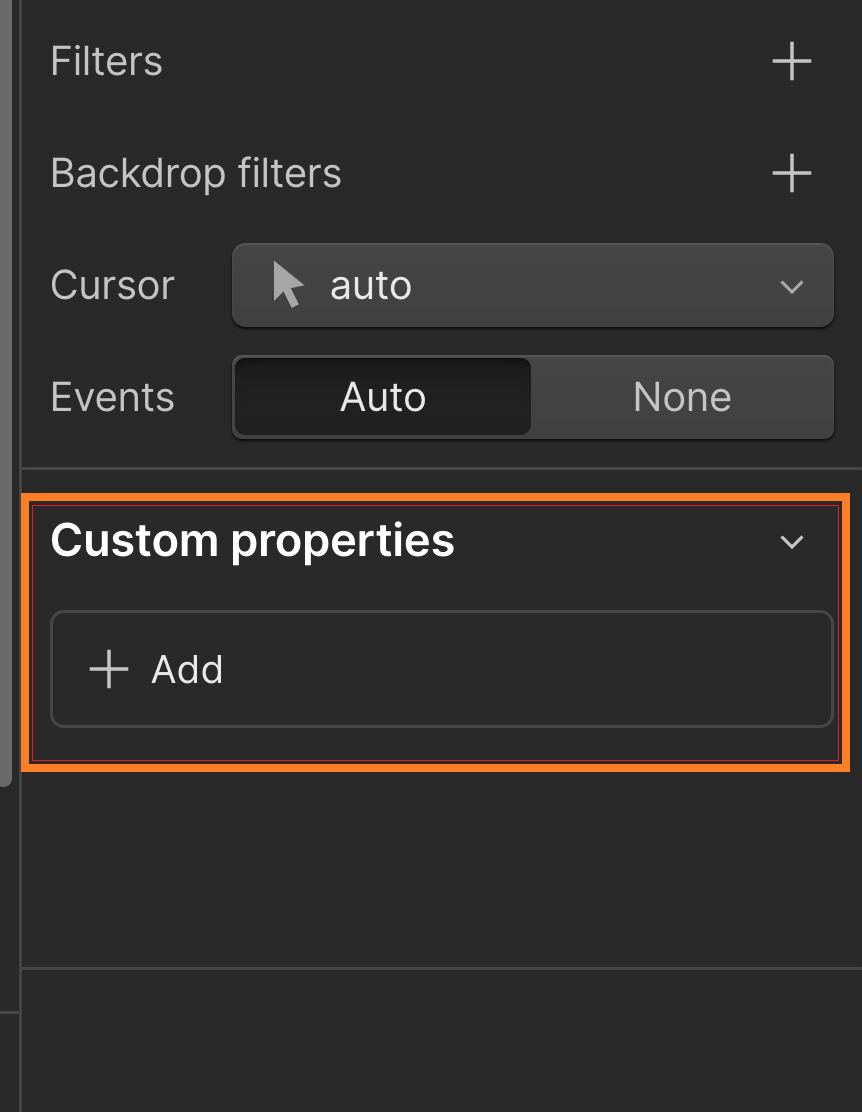
- Unlocking Custom Properties: Locate the "Custom Properties" section within the Style panel. It might be hidden under an expandable menu, depending on your Webflow editor version.
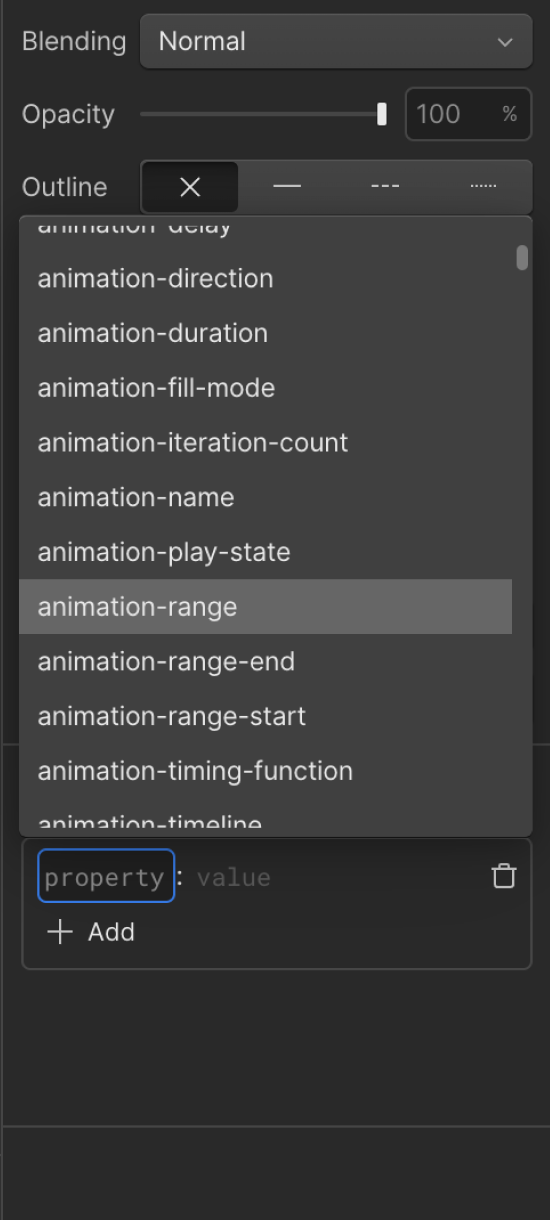
- Defining Your Property: Click the "Add" button to create a new custom property. Give it a descriptive name that reflects its purpose (e.g., --button-colour or --primary-font-size).
- Assigning a Value: In the value field, you can either enter a specific value like a colour code or even utilise existing Webflow variables for even greater flexibility.
By following these steps, you've successfully created a custom property that can be referenced and applied to various elements throughout your Webflow project.
So, how do I use these magical properties in my Webflow projects?
Here's a step-by-step guide to unleashing their power:
- Pick your target: Identify the element you want to style, like a button, text, or a whole section. It's like choosing your canvas.
- Open the Style panel: Look for the "Style" panel in the Webflow editor, usually on the right side. This is your control centre for all things style-related.
- Unlock the magic box: Find the "Custom Properties" section within the Style panel. It might be hiding under an expandable menu, so keep your eyes peeled.
- Create your magic box: Click the "Add" button to create a new custom property. Give it a clear and descriptive name (e.g., --button-colour or --main-font) so you can easily remember its purpose.
- Fill the box with magic: In the value field, you can either enter a specific value like a colour code or use an existing Webflow variable for even more flexibility. Think of it as adding a special ingredient to your style potion.
And that's it! You've successfully created a custom property
that you can now use to style any element in your project by simply referencing
its name. It's like having a secret style code that only you and your Webflow project understand.
The Benefits of Using Custom CSS Properties in Webflow:
- Effortless Design: Say goodbye to repetitive code and hello to a streamlined workflow. Custom properties let you define styles once and reuse them multiple times, saving you tons of time and preventing copy-paste headaches.
- Organised Chaos: Imagine having all your design elements like fonts, colours, and layouts neatly organised in one place. Custom properties act as your central style hub, keeping your project clean and manageable, even as it grows in complexity.
- Collaboration Made Easy: Sharing your design system with colleagues becomes a breeze. Everyone can access and understand the styles from a central location, ensuring everyone's on the same page and maintaining design consistency.
With custom CSS properties at your disposal, you're not just
building websites, you're crafting design experiences with ease and efficiency.
So, go forth, Webflow warriors, and unleash your creativity with the power of custom properties!
Conclusion
In conclusion, Webflow's Custom CSS Properties and Values empower you to streamline your design workflow, manage styles centrally, and foster collaboration. By understanding the core concepts, advantages, and implementation steps, you can leverage this powerful feature to create stunning and dynamic websites with greater efficiency. Embrace the potential of custom properties and elevate your Webflow design experience to new heights!
Also, Read: Mastering the Art of Adding Webflow Custom Code for more insights.
FAQs
1. What are custom CSS properties?
Custom CSS properties, also known as CSS variables, are like user-defined values you can use throughout your stylesheet. They allow you to define a single value and reuse it across various styles, promoting code maintainability and efficiency.
2. How do I declare a custom property?
There are two ways to declare a custom property:
- Using the var() function:
- Syntax: --property-name: value;
- Example: --primary-color: blue;
- Using the @property at-rule:
- Syntax: @property --property-name { value; }
- Example: @property --secondary-color { green; }
3. How do I use a custom property in my styles?
Once declared, use the var() function with the property name to reference its value in your styles.
- Syntax: property: var(--property-name);
- Example: h1 { color: var(--primary-color);}
4. What are the benefits of using custom properties?
- Reduced repetition: Define values once and use them repeatedly, making your code cleaner and easier to maintain.
- Centralized control: Easily change a value in one place and see the effect throughout your styles.
- Improved organization: Group related values for better readability and maintainability.
5. Can I use custom properties with JavaScript?
Yes! You can use JavaScript to modify the value of a custom property at runtime, allowing for dynamic styling changes based on user interaction or other factors.
- Example: document.documentElement.style.setProperty('--background-color', 'red');
By leveraging custom CSS properties, you can write more efficient, maintainable, and dynamic styles, enhancing the overall quality and flexibility of your web design.