
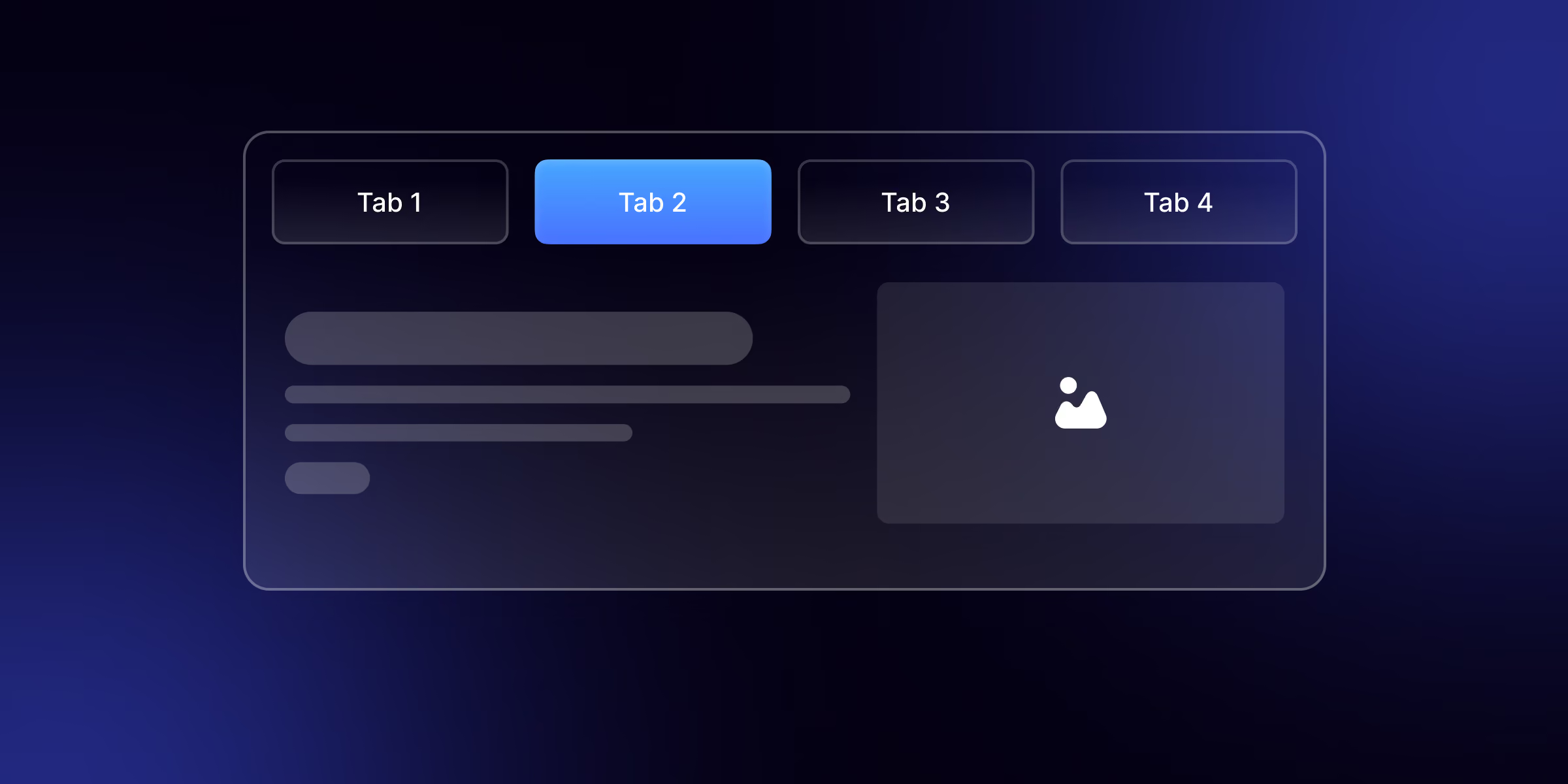
Webflow has a native Tabs element that gives you tab buttons and matching content panes out of the box drag it in, add your tabs, add content, and style the active state. For a custom look, restyle the tab links and their "Current" state. To make tabs pull from your CMS (so adding a collection item adds a tab), you combine a Collection List with a small amount of setup, because the native element doesn't read the CMS on its own.
Tabs are one of the fastest ways to tidy up a busy page pricing options, feature breakdowns, FAQs, product specs without making people scroll forever. They let you show a lot in a small space and let visitors pick what they care about. Webflow gives you a native Tabs element that covers most cases beautifully, but the moment you want tabs that pull from your CMS, the built-in tool runs out of road.
Here's how to build tabs three ways: the quick native version, a custom-styled one that matches your brand, and dynamic tabs driven by a Collection List for when the content lives in your CMS plus how to keep them working on mobile.
The Native Tabs EWlement (How to Style It)
For most tab needs, the built-in element is all you need and it's genuinely well-made.
- Drag the Tabs element onto your canvas. It comes as two linked parts: the Tabs Menu (the clickable buttons) and the Tabs Content (the panes that show).
- Add or remove tabs using the "+" on the Tabs Menu. Each Tab Link is paired to one Tab Pane Webflow keeps them in sync automatically.
- Click into each Tab Pane and add whatever content you want text, images, forms, or full layouts. Tabs can hold complex content, not just a paragraph.
- Style the Current state: select a Tab Link, switch its state to "Current" in the Style panel, and design how the active tab looks. This is the single most important styling step it's how users know which tab they're on.
- Set which tab opens by default in the Tabs settings.
That covers pricing toggles, feature comparisons, FAQ groupings anything with a fixed handful of tabs. It's reliable, accessible by default, and needs no code.
Custom Tab Buttons and Designs
The native tabs work, but the default styling is deliberately plain so you can make them yours. To level them up:
- Restyle the Tab Links as proper buttons padding, background, border radius, typography, and a clear hover state.
- Design the Current state deliberately. An underline, a filled background, a color shift, or a bottom border all clearly signal the active tab. Don't skip this untouched, active and inactive tabs look identical and confuse people.
- Add icons inside tab links for a more polished, app-like feel.
- Animate the switch with a subtle transition on the panes so content fades in rather than snapping. For richer motion between panes, layer on Webflow's interactions our guide to Webflow interactions covers how to build those cleanly.
- Control tab widths equal-width tabs for a segmented-control look, or content-width tabs for a menu feel.
Dynamic Tabs from a CMS Collection List
This is the part the native Tabs element can't do alone, and it's the most common advanced request: tabs whose content comes from your CMS, so adding a collection item automatically adds a tab. It's the difference between hand-building five tabs today and having tabs that grow themselves as your content grows team members, testimonials by category, product lines, filterable resources.
The most reliable way to do this is Finsweet Attributes specifically the List Tabs solution, which is the community standard for CMS-driven tabs and what most sites ranking for this actually use. Here's the shape of it:
- Build a Collection List with your CMS content and a native Tabs element on the page.
- Add the Finsweet Attributes script to the page's head code.
- Apply the required attributes one to the Collection List (the source), one to the Tabs component, and one to the Tab Link so Finsweet maps each collection item to a tab and its pane.
- Publish. Finsweet removes the source list from the page and populates the Tabs from your CMS automatically, and it preserves your Tab Pane styling.
It works with other Finsweet solutions too (List Filter, Load, and Sort), so you can build filterable, CMS-driven tabbed layouts. If you'd rather not use a third-party script, you can achieve the same with custom code, but List Tabs is the fastest, best-supported route.
If your tabs need to scale with your CMS, it's worth setting up properly the first time it's the kind of build we do regularly as a Webflow development agency, and our Webflow custom code guide is a good primer if you're doing it yourself.
Nested and auto-rotating tabs
Two advanced touches that come up often:
- Nested tabs: you can place a Tabs element inside a Tab Pane for sub-sections, but keep it shallow nesting tabs more than one level deep confuses people fast and usually signals the content should be reorganized.
- Auto-rotating tabs: to cycle tabs automatically (like a testimonial or feature rotator), add a small script that advances the active tab on a timer. Handy for showcases, but always give users a way to click and pause, so the rotation doesn't fight someone who's reading.
Making Tabs Work on Mobile
Tabs are the easiest component to break on small screens. A tidy row of five tab buttons on desktop wraps into a mess on a phone, and content that fit two columns overflows. Fix it at the mobile breakpoint:
- Let the tab menu scroll horizontally instead of wrapping, so buttons stay on one line and swipe.
- Or stack the tabs into an accordion-style layout on small screens, which is often more usable than tabs on a narrow viewport.
- Shrink padding and font size so buttons stay tappable but tidy, and make sure tap targets are big enough for a thumb.
Always check tabs at the mobile breakpoint before publishing it's where they most often fall apart, and it's the first thing mobile visitors notice.
Common Mistakes to Avoid
- No visible active state. If active and inactive tabs look the same, users get lost. Style the Current state.
- Too many tabs. More than five or six and tabs stop helping consider a different layout.
- Hiding critical content in tabs. Anything essential (or SEO-important) shouldn't be buried behind a tab users might never click.
- Ignoring mobile. The number one cause of broken tabs. Test it.
- Overusing auto-rotate. Motion that moves on its own while someone's reading is frustrating use sparingly and make it pausable.
FAQs
1. Does Webflow have a tabs element?
Yes. Webflow has a native Tabs element with tab buttons and matching content panes built in. You drag it onto the page, add your tabs, add content, and style the active state no code required.
2. Can you make CMS-driven tabs in Webflow?
Yes, but not with the native Tabs element alone. The common method is Finsweet Attributes' List Tabs solution (or custom code), which populates a Tabs element from a Collection List so content pulls from your CMS and new items become new tabs.
3. How do you make Webflow tabs responsive?
Let the tab menu scroll horizontally or stack into an accordion on mobile, and reduce padding and font size at the mobile breakpoint so the buttons stay tappable.
4. Can Webflow tabs hold images and full layouts?
Yes. Each tab pane can contain anything text, images, forms, or complete layouts not just a line of text.
5. How do I set which tab is open by default?
In the Tabs element settings you can choose which tab is active on load. By default it's the first tab.
6. Are Webflow tabs good for SEO?
Content inside tabs is in the page's HTML, so it's generally indexable but don't bury your most important, keyword-relevant content behind a tab a user has to click, since visible content carries more weight.

.jpg)