
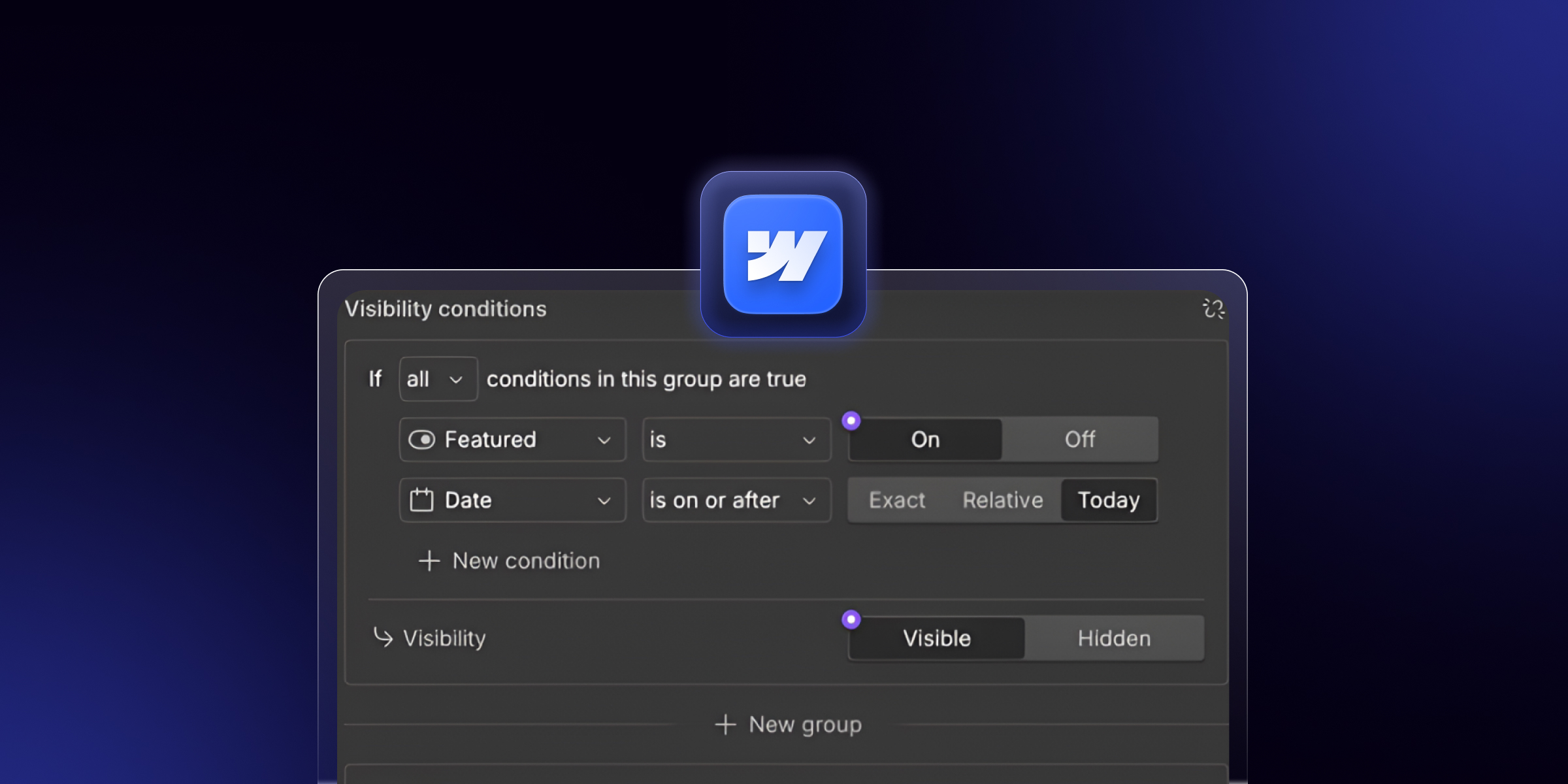
Sometimes you want an element to show only in certain cases. Maybe a badge that appears when a product is on sale. Or a button that hides when there is no link. Webflow conditional visibility does this for you, with no code. This guide explains how it works, how to set it up, and when to use it.
We build dynamic Webflow sites for clients at theCSS Agency. This is how we use conditional visibility every week.
What Is Conditional Visibility in Webflow?
Conditional visibility is a rule that decides if an element shows or hides. You attach the rule to an element in the designer. When the rule is true, the element shows. When it is false, the element hides.
This is a form of webflow display logic. It lets one design handle many cases. You build the layout once, then let each rule control what appears. The result is a smart page that adapts to your data.
There are two main ways to use it. The first checks a CMS field, like whether a field is empty. The second uses the newer Conditionals feature, which checks conditions you set. We cover both below.
Where to Find Conditional Visibility
You find conditional visibility in the element settings, on the right side of the designer. Select any element, then open the settings panel. Look for the Conditional Visibility section.
The options you see depend on the element. Inside a collection list, you get CMS field rules. On other elements, you may see the newer Conditionals controls. Webflow keeps adding to this feature, so the panel grows over time.
CMS Conditional Visibility: Hide Based on a Field
The classic use is inside a CMS Collection List. Here, you show or hide an element based on one of its fields. This is called Webflow CMS conditional visibility, and it is very common.
A simple example is an empty field. Say each item has an optional "Sale" field. You want the sale badge to show only when that field is filled. Conditional visibility handles this with one setting.
How to Set Up CMS Conditional Visibility
Follow these steps inside a collection list.
- Add your element inside a collection list item, like a badge or button.
- Select the element you want to control.
- Open the settings panel on the right.
- Find the Conditional Visibility section.
- Choose the field to check, like "Sale price."
- Set the rule, such as "is set" or "is not empty."
- Save and preview the page.
Now the element only shows when the rule is true. If the field is empty, Webflow hides the element for that item. This keeps your design clean with no blank spaces.
Common Field Rules You Can Use
Webflow gives you several rules for CMS fields. The exact list depends on the field type.
- Is set / is not empty: show the element only when the field has a value.
- Is not set / is empty: show the element only when the field is blank.
- Switch is on or off: show based on a true or false toggle field.
- Equals a value: show when a field matches a set value.
These rules cover most needs. An empty-field check is the one teams use most. It is the fastest way to hide missing content.
Webflow Conditionals: The Newer Display Logic
Webflow added a broader conditionals feature, beyond CMS fields. This lets you set conditions on more elements, not just collection lists. It gives you finer control over what shows and when.
With Webflow conditionals, you build a rule from one or more conditions. The element shows only when the conditions pass. This works well for dynamic content and Webflow components. It brings real logic to your design, with no code.
The feature keeps growing, so check the current options in your project. The core idea stays the same. You define a condition, and Webflow shows or hides the element to match.
Common Use Cases for Conditional Visibility
Conditional visibility solves many real problems. Here are the cases we use most for clients.
Hide Empty CMS Fields
This is the top use by far. Optional fields are often blank for some items. Conditional visibility hides the element when the field is empty. So you never show a stray label or an empty box.
For example, not every team member has a Twitter link. You set the Twitter icon to show only when the link is set. Members with no link simply skip the icon. The layout stays clean for every card.
Show Badges and Labels
Badges are perfect for conditional visibility. Think "New," "Sale," or "Featured" tags. You set the badge to show only when a field or switch says so. This highlights the right items with no manual work.
Say you mark some posts as featured with a toggle. The Featured badge shows only on those posts. When you turn the toggle off, the badge hides. One rule handles the whole collection.
Control Buttons and Links
Buttons often depend on optional data. A "Watch Demo" button needs a video link to work. If the link is empty, the button should not show. Conditional visibility hides it, so users never hit a dead button.
You set the button to show only when its link field is set. Items with a link get the button. Items without one skip it. This prevents broken clicks and keeps trust with your visitors.
Conditional Visibility vs Hiding With CSS
You can also hide elements with CSS or the display setting. It helps to know when to use each one. They solve different problems.
Conditional visibility is dynamic and data-driven. It reads a field or condition, then decides per item. Use it when the choice depends on your content. This is the right tool for CMS-based rules.
Hiding with the display setting is static. You set an element to "display none," and it hides for everyone. Use this for a permanent hide or to hide Webflow element parts across breakpoints. For per-item logic, conditional visibility is the better fit.
How to Hide an Element on Mobile
Hiding on mobile is a related but separate task. It is not conditional visibility, but people often confuse the two. You handle this with breakpoint display settings.
To hide a Webflow element on mobile, select the element and switch to the mobile breakpoint. Then set its display to none. The element hides on mobile but stays on desktop. This is a responsive choice, not a data rule.
So use breakpoints for device-based hiding. Use conditional visibility for content-based hiding. Each tool has its own job, and mixing them up causes confusion.
Limitations to Know
Conditional visibility is powerful, but it has limits. Knowing them saves you time.
- CMS rules need a Collection List. Field-based rules work inside CMS content, not on static elements.
- Hidden elements still load. The element may still exist in the code, just hidden from view.
- Rules are per element. You set the rule on each element, so plan your structure well.
- The feature evolves. Webflow updates conditionals often, so options may change over time.
Plan around these limits, and conditional visibility works smoothly. For complex logic, an agency can help you structure it right.
Troubleshooting Conditional Visibility
A few issues come up during setup. Here are quick fixes.
The Conditional Visibility Option Is Missing
If you do not see the option, check where your element sits. CMS field rules only appear inside a collection list. Move the element into the list, then check the settings panel again.
Also confirm you selected the element itself, not a parent. The rule attaches to the exact element you pick. Reselect the element, then open the settings panel to find the section.
The Element Shows When It Should Hide
This usually means the field is not truly empty. A space or a default value can count as "set." Open the CMS item and clear the field fully. Then preview again to confirm the rule works.
Also check that you picked the right field and rule. A rule of "is set" shows when filled, while "is empty" shows when blank. Make sure the rule matches what you want. A quick swap often fixes it.
It Works in Preview but Not Live
Some changes only apply after you publish. If a rule works in the Designer but not on the live site, publish again. Then reload the live page to see the update.
Clear your browser cache if the old version still shows. A hard refresh loads the newest published version. After that, the rule should behave the same as in Preview.
Best Practices for Conditional Visibility
Use these tips to keep your logic clean and easy to manage.
- Name your CMS fields clearly, so rules are easy to read.
- Use "is set" rules to hide optional fields that are often empty.
- Test each rule in Preview before you publish.
- Keep rules simple, and avoid stacking too many on one element.
- Document your rules if a team shares the project.
Conclusion
Webflow conditional visibility lets you show or hide elements with a rule, no code needed. The most common use hides empty CMS fields, so your layout stays clean. The newer Conditionals feature adds broader display logic for more elements. Both let one design handle many cases.
Start with a simple rule, like hiding a button when its link is empty. Test it in Preview, then publish. Once you see how it works, you will use it across your whole site. It is one of the best tools for clean, dynamic Webflow pages.
Need a dynamic Webflow site that adapts to your content? theCSS Agency builds custom, CMS-driven Webflow sites for SaaS and B2B teams. Book a call to build smarter pages.
FAQs
1. What is conditional visibility in Webflow?
Conditional visibility is a setting that shows or hides an element based on a rule. The most common rule checks a CMS field, such as hiding an element when its field is empty. No custom code is needed.
2. How do I use conditional visibility in Webflow?
Select an element inside a collection list, then open the settings panel. Find the Conditional Visibility section, choose a field, and set a rule like "is set." The element then shows only when the rule is true.
3. Can I hide an element when a CMS field is empty?
Yes. Select the element, open Conditional Visibility, and set the rule to "is set" or "is not empty." Webflow hides the element for any item where the field is blank.
4. What is the difference between conditional visibility and display none?
Conditional visibility is dynamic and checks a field or condition per item. The display none setting is static and hides an element for everyone. Use conditional visibility for CMS-based logic and display none for permanent or responsive hiding.
5. How do I hide an element only on mobile in Webflow?
Select the element, switch to the mobile breakpoint, and set its display to none. This hides it on mobile while keeping it on desktop. This is a responsive setting, not conditional visibility.
6. Why is the conditional visibility option missing?
CMS field rules only show inside a collection list. If the option is missing, move your element into the list and reselect it. Then open the settings panel to find the Conditional Visibility section.
7. Does conditional visibility need custom code?
No. Conditional visibility is a built-in Webflow feature. You set the rule in the element settings, with no code. It works on Webflow-hosted sites once you publish.


.jpg)