
A well-designed language switcher improves user experience on multilingual websites and can increase conversion rates by up to 40% by allowing visitors to access content in their preferred language. For Webflow developers, implementing an intuitive language selector is essential for creating professional multilingual sites that serve global audiences effectively.
Language switchers enable seamless navigation between language versions without disrupting the user's browsing experience. When properly implemented, visitors stay on the same page while content switches to their selected language-maintaining context and improving engagement across all locales.
This comprehensive guide covers three proven implementation methods specifically for Webflow developers: using the native Locales List element, custom JavaScript toggles, and third-party integration solutions.
Whether you're building your first multilingual Webflow site or optimizing an existing implementation, this guide provides clear, actionable instructions that work in real-world development scenarios.
What Is a Language Switcher?
A language switcher is a navigation element that allows users to select their preferred language version of a website. It appears as a dropdown menu, button group, or inline links-typically in the header navigation or footer.
Language switchers help to reduce bounce rates from international visitors and improve engagement through native-language content delivery. Users can switch languages without losing their current page position.
Properly implemented language switchers work with hreflang tags to signal language alternatives to search engines, improving international rankings and organic traffic from target markets.
Common placement:
- Navbar (recommended): Highly visible, accessible on all pages, and follows web conventions.
- Footer: Subtle placement works for secondary language options.
Sticky positioning: Remains visible during scrolling, optimal accessibility.
Webflow Localization pricing
Webflow Localization is a paid add-on available on top of your existing site plan. It is not included in any base Webflow site plan (Basic, CMS, Business).
Localization plans are billed separately from your workspace and site plans. If you need more locales than the Advanced plan allows, you must contact Webflow Sales for an Enterprise quote. The Essential plan is enough for most small businesses adding a single secondary language. The Advanced plan is the standard choice for sites targeting 3–5 regional markets.
If Localization costs are prohibitive, Weglot starts at $17/mo for 1 language and 10,000 words often cheaper for low-word-count sites but becomes more expensive as content grows, since Weglot pricing scales with word count rather than locale count.
Ways to Implement Language Switcher
- The Webflow Locales List element provides native language switcher functionality introduced with Webflow Localization. This built-in component connects automatically to your localization settings and requires no coding.
- Custom code implementations use JavaScript to create language toggles for multi-project setups or specific requirements not covered by native features. This approach works with any Webflow plan but requires technical knowledge.
- Third-party integrations like Weglot, Polyflow, and Elfsight offer automated translation with pre-built language switchers. These solutions simplify implementation but add external dependencies and subscription costs.
Method 1: Using Webflow's Native Locales List
Prerequisites and Setup
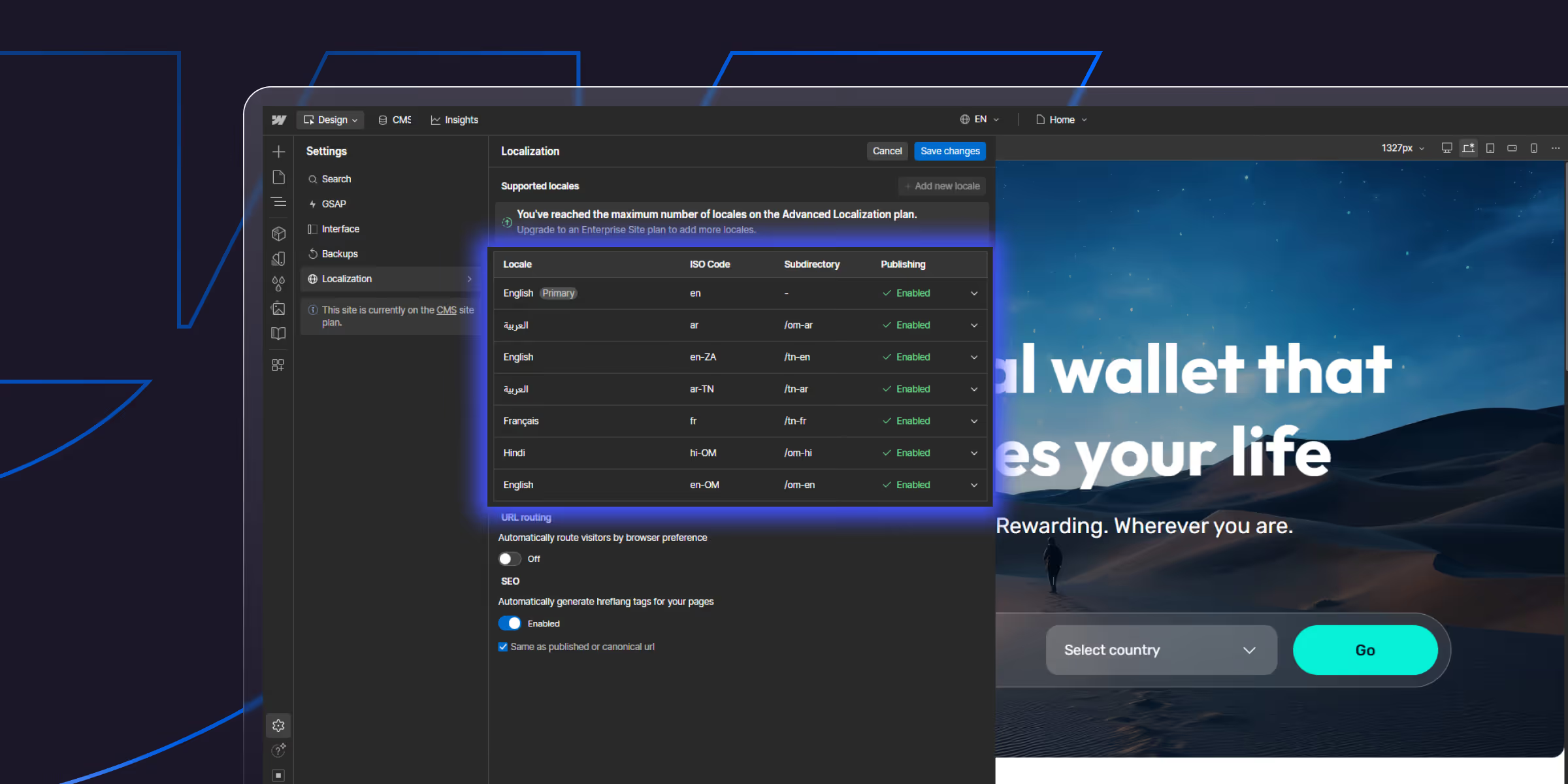
How to enable Webflow localization?
- Open your Webflow project.
- Navigate to Site Settings (gear icon in left sidebar).
- Click "Localization" in the settings menu.
- Click the "Enable Localization" button.
- Accept the localization requirements.
How to add language locales?
- In Localization settings, click "Add locale".
- Select your target language from dropdown (50+ languages available).
- Optionally specify regional variant (e.g., en-US, en-GB, es-ES, es-MX).
- Configure display name for the language switcher.
- Repeat for all languages you want to support.
Step-by-Step Implementation
Step 1: Navigate to your navbar or header
- Open the Webflow Designer.
- Select the navbar or section where you want the language switcher.
- This location should be consistent across all pages.
Step 2: Add Dropdown element
- Open the Add panel (+) in the left sidebar
- Scroll to the "Components" section.
- Drag the "Dropdown" element to your desired location in the navbar.
- The dropdown provides the container for the language switcher.
Step 3: Customize dropdown button
- Select the "Dropdown Toggle" (the button users click)
- Change text to "Language" or current locale (e.g., "English")
- Style the button to match your navbar design
- Add a down arrow icon if desired.
Step 4: Add Locales List element
- Click on the "Dropdown List" (the menu that appears on click).
- Open the Add panel.
- Scroll to the "Advanced" section.
- Drag the "Locales List" element into the dropdown list.
- The Locales List automatically populates with your enabled locales.
Step 5: Structure the Locales List
The Locales List works like a Collection List with three main components:
- Locales List wrapper: Container holding all locale items.
- Locale Item: Individual language option (repeated for each locale).
- Locale Link: Clickable element that switches languages.
Building a Dropdown Language Switcher
Complete structure hierarchy:
Navbar
└── Dropdown
    ├── Dropdown Toggle (button showing "Language")
    └── Dropdown List (opens on click)
        └── Locales List
            └── Locale Item (auto-generated for each language)
                └── Locale Link
                    └── Text or custom content
Styling Your Language Switcher
Customizing dropdown appearance:
Step 1. Select the Dropdown element
Step 2. Style the Dropdown Toggle (button):
- Background color, padding, typography.
- Hover and active states.
- Icon spacing and alignment.
Step 3. Style the Dropdown List (menu):
- Background color and border.
- Width and positioning.
- Shadow and animation.
- Mobile responsive behavior.
Styling locale items:
Step 1. Select the Locale Item in the Locales List.
Step 2. Apply styling that will repeat for all languages:
- Padding and spacing.
- Background color and hover effects.
- Border separators between items.
- Typography (font, size, color).
Step 3. Style the Locale Link:
- Text color and hover states.
- Transition effects.
- Current locale highlighting (conditional visibility).
- Icon or flag spacing.
Method 2: Custom Code Language Toggle
JavaScript-Based Language Switching
When custom code is needed:
- Multi-project setups (separate Webflow projects for each language)
- Sites on Basic plans without Localization access
- Legacy implementations before native localization existed
- Specific URL structures (subdomains, separate domains).
Multi-project scenarios:
When each language version exists as a separate Webflow project, JavaScript creates links between them while maintaining the current page path.
Subdomain Implementations:
Example: English at `example.com`, Spanish at `es.example.com`
Custom code maintains the URL path when switching:
- User on `example.com/products/item-1`
- Switches to Spanish → redirects to `es.example.com/products/item-1`
Subdomain Implementation Steps
Step 1: Create toggle button element
- Add a button or link element in your navbar
- Add descriptive text: "EN | ES" or "Language."
- Style to match your design
- Give it a class name: `language-toggle`
Step 2: Add JavaScript code
Navigate to Page Settings > Custom Code > Before </body> tag:
<script>
// Language switcher for multi-project setup
let toggle = document.querySelector('.language-toggle');
let domain = window.location;
let slug = domain.pathname;

// Define your alternate language domain
let alternateDomain = 'https://es.yoursite.com'; // Change to your domain

toggle.addEventListener('click', switchLanguage);

function switchLanguage() {
  // Redirect to alternate domain with same page path
  window.location.href = alternateDomain + slug;
}
</script>
Customization for your setup:
- Replace `.language-toggle` with your button's class name.
- Replace `alternateDomain` URL with your actual alternate domain.
- For multiple languages, create separate buttons with different domains.
For bidirectional switching (two-way between languages):
<script>
let toggle = document.querySelector('.language-toggle');
let currentDomain = window.location.hostname;
let slug = window.location.pathname;

// Define domains for both languages
let englishDomain = 'https://example.com';
let spanishDomain = 'https://es.example.com';

toggle.addEventListener('click', switchLanguage);

function switchLanguage() {
  // Check current domain and switch to alternate
  if (currentDomain.includes('es.example.com')) {
    window.location.href = englishDomain + slug;
  } else {
    window.location.href = spanishDomain + slug;
  }
}
</script>
For multiple language options (3+ languages):
<script>
// Get all language toggle buttons
const languageButtons = document.querySelectorAll('[data-language]');

languageButtons.forEach(button => {
  button.addEventListener('click', function() {
    const targetLang = this.getAttribute('data-language');
    const currentPath = window.location.pathname;

    // Define language domains
    const domains = {
      'en': 'https://example.com',
      'es': 'https://es.example.com',
      'fr': 'https://fr.example.com',
      'de': 'https://de.example.com'
    };

    if (domains[targetLang]) {
      window.location.href = domains[targetLang] + currentPath;
    }
  });
});
</script>
HTML structure for multiple languages:
<div class="language-switcher">
  <button data-language="en">EN</button>
  <button data-language="es">ES</button>
  <button data-language="fr">FR</button>
  <button data-language="de">DE</button>
</div>
Method 3: Third-Party Integration Solutions
Weglot Language Switcher
Automatic switcher generation:
Weglot automatically adds a language switcher to your site upon integration. The switcher appears in the bottom-right corner by default but can be repositioned.
Implementation steps:
- Create Weglot account at weglot.com
- Add your Webflow site domain
- Select target languages
- Copy Weglot installation code
- Paste into Webflow Site Settings > Custom Code > Footer
- Publish site-switcher appears automatically.
Customization options:
- Visual editor for drag-and-drop positioning.
- Multiple design templates are available.
- Custom CSS styling.
- Mobile-specific layouts.
- Flag icons or text-only displays.
Clone-ready templates:
Weglot provides pre-designed switchers you can clone directly in Webflow:
- Visit Weglot's template library.
- Browse 25+ switcher designs.
- Clone directly to your project.
- Customize colors and styling.
- Connect to your Weglot account.
Polyflow Language Selector
Native Webflow integration:
Polyflow syncs directly with Webflow CMS and Designer, providing a more native experience than other third-party tools.
Custom URL management:
Polyflow allows custom URLs and subdirectories per language, maintaining SEO best practices with proper slug structure.
Styling flexibility:
Since Polyflow syncs with Webflow, you style the language switcher directly in the Designer like any native element.
Implementation process:
- Connect Webflow project to Polyflow
- Add language alternatives in Polyflow dashboard
- Translate content
- Publish-language switcher appears based on browser language
- Customize switcher design in Webflow Designer
Elfsight Translation Plugin
No-code setup:
Elfsight provides a visual editor for creating and customizing language switchers without touching code.
Widget customization:
- Access the Elfsight editor.
- Choose a switcher template.
- Select languages (100+ available).
- Customize appearance, position, and colors.
- Generate embed code.
Embedding process:
- Copy generated code from Elfsight.
- Paste into Webflow Embed an element or custom code.
- Position where needed in your design.
- Publish and test.
theCSS Agency's Multilingual Expertise
Professional Implementation Services
Custom language switcher design tailored to your brand creates unique, on-brand language selection experiences that exceed standard implementations. Our design team creates switchers that integrate seamlessly with your visual identity while maintaining optimal usability.
Complex multilingual setups require expertise that theCSS Agency provides through 150+ multilingual Webflow projects. We handle advanced scenarios, including multi-project coordination, custom URL structures, geo-targeting, and enterprise-scale implementations.
Performance optimization ensures language switchers load instantly and switch seamlessly without degrading site speed. Our technical approach balances functionality with performance, maintaining fast load times even with multiple language versions.
Conclusion
Implementing a language switcher in Webflow transforms single-language sites into accessible global platforms that serve international audiences effectively. The three implementation methods covered-native Locales List, custom JavaScript toggles, and third-party solutions-each serve different technical requirements and project contexts.
Webflow's native Locales List provides the most streamlined path for new multilingual implementations, offering automatic integration with localization settings, no-code setup, and optimal performance.
Custom JavaScript solutions serve specialized needs, including multi-project setups, legacy implementations, and Basic plan projects.
Third-party integrations simplify deployment through automated solutions but introduce external dependencies and ongoing costs.
Ready to implement a professional language switcher that enhances your Webflow multilingual site's user experience and drives international conversions? theCSS Agency specializes in custom multilingual implementations combining technical excellence with conversion-focused design. Our proven approach delivers switchers that work flawlessly while matching your brand's visual identity.
Schedule your multilingual consultation today and discover how professional language switcher implementation can transform your international user experience and global growth.
FAQs
1. How do I add a language switcher in Webflow?
Webflow now has native multilingual support via Webflow Localization. Enable it in Site Settings → Localization, add your target locales, then add the Locales List element (Add panel → Advanced) to your navbar — it auto-populates with all enabled locales and handles language routing natively, no code required. Webflow Localization is a paid add-on (from $9/mo for 2 locales). For sites needing more control over translation management, Weglot provides automated translation with its own switcher widget. For multi-project setups (separate Webflow projects per language), use custom JavaScript to maintain page path when switching between domains.
2. How do I change website language in Webflow?
With Webflow Localization (Site Settings → Localization), you can create fully translated versions of your site. Enable a locale, translate content in the Designer's locale editor, and publish Webflow handles URL routing (subdirectory or subdomain) and serves the correct language version automatically. For third-party translation via Weglot, install the Weglot script in your site's Custom Code; Weglot detects browser language preference and switches content automatically. Language preference can also be stored in a cookie so returning visitors see their preferred language without re-selecting.
3. Is there a free language switcher for Webflow?
Yes, there are free ways to create a language switcher in Webflow. You can manually duplicate pages for different languages and connect them using navigation links or a dropdown switcher without using paid tools. Some third-party translation tools also offer limited free plans, but fully automated multilingual functionality usually requires a paid subscription for advanced features and SEO support.
4. How do I add hreflang tags in Webflow?
You can add hreflang tags in Webflow by inserting custom code inside the page settings under the Head Code section. Hreflang tags help search engines understand which language version of a page should be shown to users in different regions, improving international SEO and preventing duplicate content issues. Translation tools like Weglot can also generate hreflang tags automatically.
5. What is the best way to create a multilingual website in Webflow?
The best way to create a multilingual website in Webflow depends on your goals. For strong SEO performance and full control, manually creating language-specific pages using subdirectories is the most effective approach. For faster implementation and easier management, translation tools like Weglot provide automated workflows, language detection, and SEO optimization without complex development.

.jpg)