
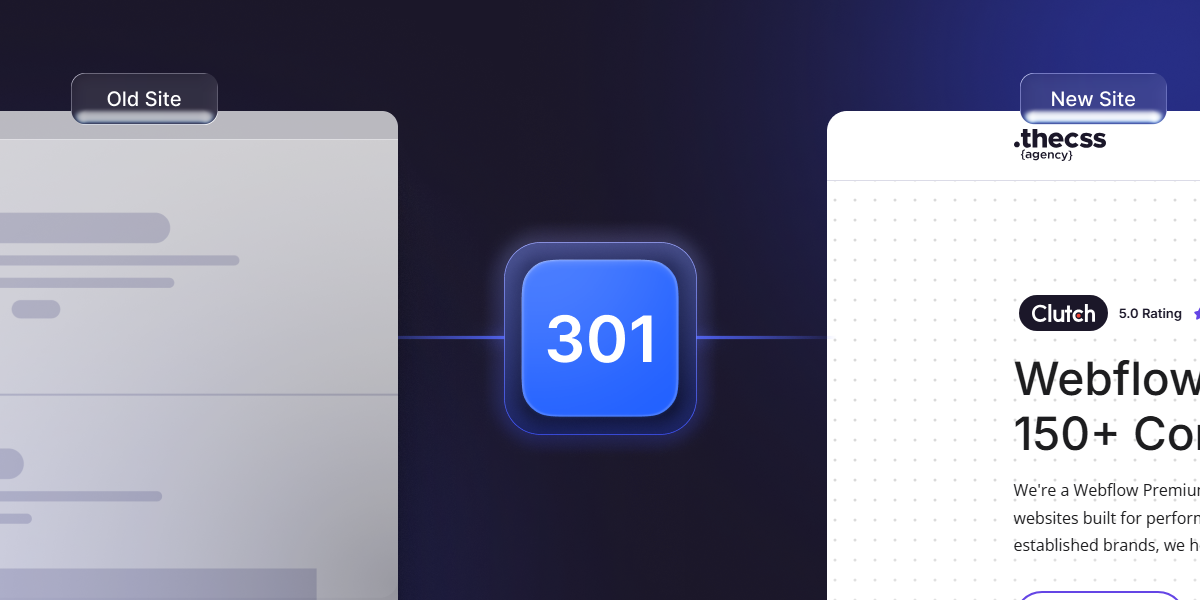
A missed 301 redirect step cost one of our clients 38% of their organic traffic in a single week. We rebuilt their redirect map by hand over three weeks then built a tool so it never happens again. Drop in your old and new sitemaps (by URL or uploaded `sitemap.xml`), the tool auto-maps old URLs to new URLs using path similarity, token overlap, and depth scoring, flags low-confidence rows for review, and exports a Webflow-ready CSV. Free, no signup, no limits.
Three years ago I lost a client 38% of their organic traffic in one week.
We'd migrated their WordPress site to Webflow. New design. Faster load times. Better UX. The kind of project that looks great in a portfolio screenshot.
But we missed something. Over 200 old blog URLs weren't redirected properly. Google crawled the new site, hit 404s on every old URL it had ever indexed, and the rankings collapsed inside seven days. It took us three weeks of triage fixing redirects in batches, requesting re-indexing, watching positions claw back one query at a time to get the traffic back.
That mistake taught me something I haven't forgotten since: 301 redirects aren't a "nice to have" on a migration. They're the difference between a successful launch and an SEO disaster.
The problem is Webflow doesn't make this easy. Redirects get added one at a time through the Project Settings panel — there's no native bulk import, no sitemap diffing, no validation. For a 500-page site, that's a full day of copy-paste work, and one missed row is one more URL bleeding traffic.
So we built the tool we wished we'd had three years ago.
What the tool actually does
You feed it two sitemaps your old site and your new Webflow site. The tool:
- Accepts a sitemap URL or an uploaded `sitemap.xml: mix and match (e.g. old = live URL, new = uploaded file from your Webflow staging build)
- Auto-maps every old → new pairing using path similarity, token overlap, and depth scoring
- Shows a confidence badge on every row high-confidence mappings are accepted automatically, low-confidence rows surface inline for review
- Lets you fix any pairing inline before exporting — no spreadsheet round-trip
- Exports as a Webflow-ready CSV that drops straight into Project Settings → Publishing → 301 Redirects. Other formats available: `.htaccess`, NGINX `rewrite` rules, plain CSV
- Stores redirects as paths, so the same map works on your staging URL and your production domain
That's it. No account. No paywall. No "upgrade for bulk imports." We built it because we needed it, and there's no version of this where we charge for it.
Try the 301 Redirect Generator Tool
The specific migration pain that drove it
If you've never run a CMS migration, the redirect map sounds like a footnote. It isn't. It's where SEO equity lives or dies — and it's exactly the step that cost us 38% of our client's traffic three years ago.
Three real things that go wrong every time:
WordPress `/category/` prefixes: WordPress puts category slugs in front of every post by default. Webflow doesn't. If you migrate `/category/marketing/seo-tips` to `/blog/seo-tips` and forget the redirect, you lose every backlink that ever pointed at the old URL. This was the exact pattern that took us out on the 38% client — over 200 blog posts buried under `/category/` prefixes that didn't make it into the new structure.
Wix's `/post/` and `/blog-1/` patterns: Wix nests blog URLs inside arbitrary route prefixes that vary by template. A Wix → Webflow migration without a complete redirect map will 404 every blog backlink the site has ever earned.
Squarespace's `/s/` paths and category aliases: Squarespace serves the same content under multiple URL patterns (`/blog-page-name/post`, `/s/post`, sometimes both). You need to map all of them — not just the canonical one — or you'll bleed traffic from the alias URLs Google has cached.
There are tools for parts of this. Screaming Frog will crawl your old site and dump URLs. WordPress plugins can export redirects. But nothing existed that took a Webflow migration end-to-end: pull both sitemaps in, auto-pair them with a confidence score, let you fix the weak rows in the same UI, and export in Webflow's format.
So we built it.
Why we made it free
Two reasons:
One: the tool is the same tool we use internally. Every migration we run goes through it. Maintaining it costs us almost nothing we'd be building it anyway.
Two: if you're the kind of team that uses a 301 redirect generator instead of paying an agency to handle a migration, you were never going to hire us anyway. And if you are the kind of team that hires agencies, the tool earns trust without asking for anything. Either way it pays for itself.
We also open-sourced the core URL-mapping logic on GitHub. If you want to see how the scoring works or contribute an edge case you've hit the repo's linked from the tool page.
How to use it on a real migration
1. Provide both sitemaps: Enter a URL for each side, or upload a `sitemap.xml` file. You can mix and match — for example old = live URL, new = uploaded file from your Webflow staging build. Most old sites expose their sitemap at `/sitemap.xml` or `/sitemap_index.xml`. For your new Webflow build, Webflow generates the sitemap automatically under Project Settings → SEO.
2. Auto-map and edit: The tool scores every old → new pairing using path similarity, token overlap, and depth. Each row gets a confidence badge green is high-confidence, amber needs a glance, red needs a manual fix. Click any row to override the target inline. No spreadsheet exports, no copy-paste between tabs.
3. Export the CSV: Download a Webflow-ready CSV (or pick `.htaccess`, NGINX, or plain CSV). Redirects export as paths rather than full URLs, so the same file works whether you're testing on a staging subdomain or pushing to production.
4. Import into Webflow: In Webflow: Project Settings → Publishing → 301 Redirects. Paste the rows from the CSV, publish, done.
Run this before launch Once DNS points to Webflow, the old site is gone and its sitemap goes with it. Generate your redirect map while the old site is still live, or save the old `sitemap.xml` to your computer beforehand and upload it. We've seen teams forget this step and end up reconstructing the old URL list from the Wayback Machine. Don't be that team.
Our full 301 redirect guide for Webflow covers the technical setup inside Webflow itself single redirects, wildcard patterns, regex matching.
FAQs
1. Is the Webflow 301 redirect generator really free?
Yes. No signup, no paywall, no usage limits. We use it internally on every migration and figured other teams should have it too. We're a Webflow Premium Partner with 150+ websites built — the tool is a goodwill play, not a lead-gen funnel.
2. Do I need a sitemap to use the tool?
You need one for each side of the mapping old site and new site. If your old CMS doesn't expose a `sitemap.xml`, you can generate one with Screaming Frog (free up to 500 URLs) and upload the file. For your new Webflow build, the sitemap is auto-generated under Project Settings → SEO.
3. What if my old site is already taken down?
If the old site is offline and you didn't save its sitemap, you'll need to reconstruct the URL list — Wayback Machine, Google Search Console's old performance data, or a backup of the old hosting. This is why we strongly recommend running the tool before DNS cutover. Once the old site is gone, recovering URLs is painful.
4. How accurate is the auto-mapping?
It depends on how closely your new URL structure mirrors the old one. For straight migrations where most slugs stayed the same, expect 80–90% of rows to come back high-confidence. For full IA restructures (new categories, renamed sections), expect 40–60% high-confidence and the rest needing manual review. The tool flags the weak rows so you know exactly where to focus.
5. Can I use the output for non-Webflow sites?
Yes. The tool exports to `.htaccess` (Apache), NGINX `rewrite` rules, and plain CSV in addition to Webflow's native format. Use whichever your hosting needs. Redirects export as paths rather than full URLs, so the file is portable.
6. Does the tool store my URLs anywhere?
Sitemap parsing and mapping happen in your browser. We don't persist URL inputs or mappings on our servers. The open-source repo is linked from the tool page if you want to verify the implementation.
7. How many URLs can I process at once?
There's no hard limit. We've tested it on sitemaps with 5,000+ URLs without issue. Very large sitemaps (10,000+) may take a few seconds to parse be patient on the initial upload, the auto-mapping itself is fast.

.jpg)