
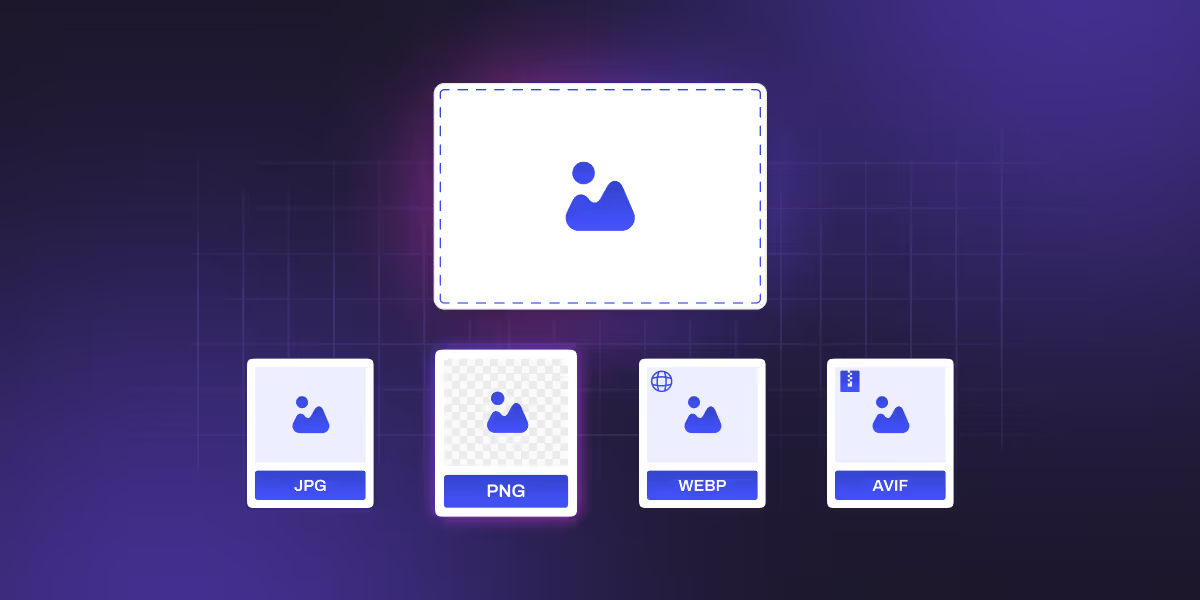
Images make up a big chunk of search results, but most Webflow sites miss easy wins. Good image SEO can boost your rankings and help users find your content faster.
Webflow image optimization isn't just about alt text. You need to handle file sizes, formats, load times, and more. When you get it right, your Core Web Vitals improve and search engines rank you higher.
This guide shows you how to optimize images for SEO in Webflow. You'll learn to write alt text that ranks well, compress images without losing quality, and use Webflow's built-in tools to automate the process.
What is Image SEO?
Image SEO is the process of optimizing images for search engines. So search engines can understand, index, and rank them with better visibility.
Image SEO includes improving file names, alt text, image size, best image format for web, captions, structured data, and overall loading performance. Good image SEO helps your images appear in Google Images, improves page rankings, and boosts overall site speed and user experience.
Why Image SEO Matters
Google Image Search drives over 20% of all web searches. That's huge traffic you might be missing.
When your images show up in search results, users click through to your site. This traffic often converts well because people are looking for specific things.
Poor image optimization hurts your Core Web Vitals scores. Slow-loading images cause bad LCP scores, which Google uses to rank sites.
Pages with optimized images get 94% more views. Users also spend 65% more time on pages with good visuals.
Webflow's Built-In Image Features
Webflow handles a lot automatically. It creates responsive images at multiple sizes, adds lazy loading by default, and converts images to WebP format.
The platform generates several versions of each image. It serves the right size based on the user's device and screen, which speeds up loading times.
Webflow produces clean HTML code that search engines like. The CDN delivers images from servers close to your users, cutting load times around the world.
How to Write Better Alt Text
Good alt text serves two purposes: it helps blind users and tells search engines what your image shows. Keep it clear and brief. Skip generic terms like "image" or "photo".
Use keywords naturally. Instead of "SEO keywords optimization," write "team working on SEO strategy using laptop dashboard".
Keep alt text between 100 and 125 characters. Screen readers may cut off longer text, and search engines show shorter snippets in results .
Alt Text for Different Image Types
Product images need specific details. Include colors, features, and what makes the product unique. Example: "Black wireless headphones with a carrying case on a white background."
Blog images should connect to your article topic. Example: "The marketing team is checking website traffic charts on computer screens".
Decorative images don't need alt text. Use empty alt attributes (alt="") so screen readers skip them.
Screenshots should describe what users see. Example: "Webflow Designer showing responsive settings for mobile, tablet, and desktop."
Logos need company names and brief visual details. Example: "CSS Agency logo with gradient accent."
How to Add Alt Text in Webflow
For static images, click any image and find the alt text field in settings. Fill it with useful, keyword-rich content.
For CMS images, create alt text fields in your collection structure. Connect these fields to images in your templates. This keeps all dynamic content optimized.
Multi-image fields let you set alt text for each image. Hover over an image, click the three dots, and select "Edit alt text."
Rich text images also support alt text. Click the image, select the wrench icon, and add your description.
Press 'U' to open Webflow's audit panel. It shows all images missing alt text and links to fix them quickly.
Choosing the Right Image Format
WebP is your best choice for most images. It cuts file sizes by 25 to 35% compared to JPEG while keeping quality high. Webflow converts images to WebP automatically.
JPEG works well for photos with lots of colors. Keep quality between 75% and 85% for a good balance.
PNG is best for logos, graphics with sharp edges, or images needing transparency. Files are bigger, but quality stays crisp.
Try to keep most images under 200 KB. Hero images can go up to 300 to 500KB if needed.
Webflow Image Compression Tips
Compress images before uploading. Tools like TinyPNG, Squoosh, and ImageOptim can cut file sizes by 60 to 80% without visible quality loss .
Webflow adds its own compression on top of yours. Pre-compressing helps maximize performance and saves hosting space.
Recommended File Sizes
- Hero images: 300 to 500KB max
- Product photos: 100 to 200KB
- Thumbnails: 50 to 100KB
- Icons and logos: under 50KB
Upload images at 2x display size for a sharp appearance on high-res screens. For a 400px width, upload an 800px image.
Image Filename Best Practices
Use descriptive, keyword-rich filenames before uploading. Change "IMG_1234.jpg" to "webflow-responsive-design-tutorial.jpg."
Good filenames help search engines understand your images. This boosts your chances in image search results.
Use hyphens to separate words. Avoid special characters. Keep names clear but not too long.
For big sites, create naming rules. Include categories or dates to stay organized as your content grows.
Lazy Loading for Better Performance
Webflow enables lazy loading by default. Images load only when they enter the viewport. This speeds up initial page loads.
Set hero images to "eager" loading so they appear right away. Let below-the-fold images load lazily.
Lazy loading can improve LCP scores by 15 to 30% on image-heavy pages. It stops unnecessary loading that slows down your site.
Mobile users benefit most from lazy loading. Slower connections and data limits make this feature even more valuable.
Responsive Images in Webflow
Webflow creates multiple image sizes automatically. It serves the right size based on device and screen resolution.
For complex designs, you can set up manual responsive images. Use custom breakpoints that match your design and performance needs.
Test image performance across different screens. Monitor loading on various devices to make sure images appear fast everywhere.
High-density screens need images at 2x resolution. Webflow handles most of this automatically.
CDN and Delivery Benefits
Webflow uses Fastly's CDN to deliver images fast around the world. Users get images from nearby servers, not a single distant location.
This cuts image loading times by 40 to 60% for international visitors. The CDN also handles caching to speed up repeat visits.
Use tools like Google PageSpeed Insights and GTmetrix to track performance. Regular checks help you find new ways to optimize.
Advanced SEO Techniques
Image schema markup adds structured data about your images. This can improve visibility in image search. While Webflow doesn't include this built-in, you can add custom code.
Product structured data works great for online stores. It gives search engines details about pricing and availability, which can create rich snippets.
Open Graph images control how your content looks on social media. Set specific images for social sharing instead of letting platforms pick randomly.
Twitter Card optimization needs specific dimensions. Create dedicated images that display well in Twitter feeds.
Social Image Dimensions
- Facebook: 1200 x 630px
- Twitter: 1200 x 675px
- LinkedIn: 1200 x 627px
Common Mistakes to Avoid
Missing alt text is the most common problem. Every important image needs descriptive alt text. Use Webflow's audit tools to find and fix this.
Keyword stuffing in alt text or filenames can hurt you. Write naturally and include keywords only where they fit.
Large file sizes slow down your site and hurt rankings. Compress images well and check file sizes regularly.
Duplicate images can weaken SEO. Use unique images when possible, or write different alt text for each use.
Results You Can Expect
Proper image optimization typically brings 40 to 60% faster loading times. Core Web Vitals scores improve by 25 to 35%. Image search traffic can increase by 15 to 30%.
These gains improve user experience and boost conversion rates. One client saw 89% better product image visibility. Another cut page loading times by 67%.
Final Thought
Webflow image SEO requires attention to technical details, accessibility, and search requirements. The methods in this guide give you a complete framework for turning images into SEO assets.
Sites that master image optimization in 2026 will have big advantages. Use these techniques to improve performance across all devices .
FAQs
1. Why does image SEO matter?
Image SEO boosts visibility in search engines and helps pages load faster. Optimized images with good alt text also drive traffic through Google Image Search.
2. What makes good alt text?
Good alt text is short, descriptive, and includes relevant keywords naturally. It should describe the image's purpose, not just list keywords.
3. Does alt text help accessibility?
Yes. Screen readers use alt text to describe images to visually impaired users. This improves accessibility and SEO at the same time.
4. How do I optimize images in Webflow?
Use Webflow's built-in optimization or compress images with TinyPNG before uploading. Choose JPEG for photos, PNG for graphics, and WebP for best performance.
5. Should I use WebP format?
WebP offers great performance and smaller file sizes with high quality. Webflow provides automatic fallbacks for browsers that don't support it.

.jpg)
.jpg)