The best wireframing software in 2026 includes Figma, Balsamiq, Miro, Visily, and Penpot. Figma is the best all-around wireframing tool, with a free plan and design in one place. Balsamiq suits fast, low-detail wireframes. Visily and Uizard lead the new AI tools. Penpot is the top free and open-source choice. Pick based on your budget, team size, and how much detail you need.
A wireframe is the blueprint of a website or app. It maps out layout, structure, and flow before any design or code. The right wireframing tools help you plan faster and share ideas with your team. This guide compares the best wireframing design tools in 2026, both free and paid. You will also learn how to choose the right one for your project.
We plan and build websites every day at theCSS Agency. These are the tools our team and our clients rely on.
What Is Wireframing Software?
Wireframing software is a tool that helps you sketch the layout of a page. You place boxes, text, buttons, and menus to show where each part goes. The goal is structure, not final colors or polish.
Good wireframe creation tools let you drag and drop elements. Many also let you link screens to show how users move through the product. Teams use them to agree on a plan before spending time on design and development.
Wireframe vs Mockup vs Prototype
People mix up these three terms. Here is the simple difference.
- Wireframe: a basic layout in gray boxes. It shows structure and content order.
- Mockup: a static design with real colors, fonts, and images. It shows the look.
- Prototype: a clickable version that shows how the product works.
Most wireframing design tools now handle all three stages. You start with a wireframe, add detail, then link screens into a prototype.
What to Look For in a Wireframing Tool
Not every tool fits every team. Check these points before you pick one.
- Ease of use: you should build a basic screen in minutes.
- Free plan or trial: test it before you pay.
- Collaboration: live editing and comments help remote teams.
- Templates and UI kits: ready parts save hours.
- Prototyping: link screens to test the flow.
- AI features: text to design and screenshot to design speed things up.
- Export options: you want clean handoff to designers and developers.
Best Wireframing Tools in 2026
Here are the top wireframe website tools and app tools this year. Each entry lists what it does best, the price, and the free plan.
1. Figma: Best all-around wireframing tool
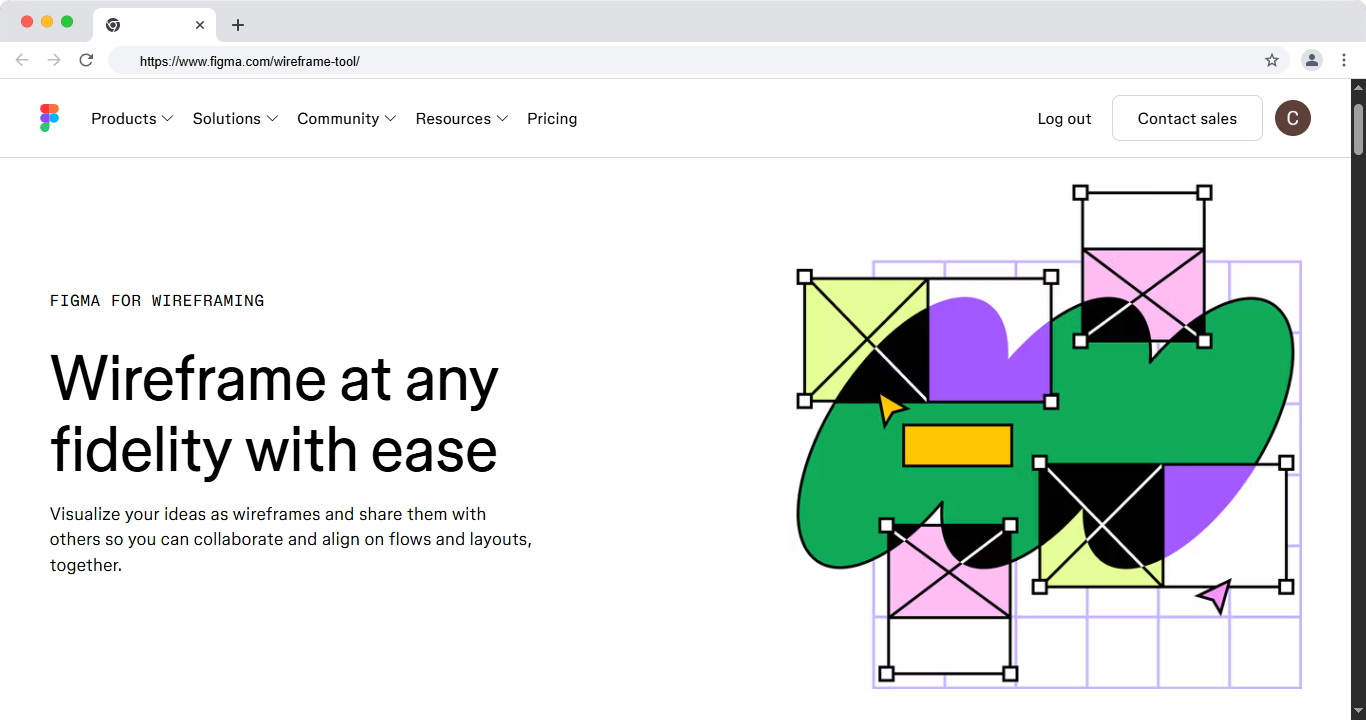
Figma is the most popular design tool today. You can wireframe, design, and prototype in the same file. Teams edit together in real time, so reviews happen fast. It runs in the browser, which means no installs and easy sharing by link. New AI features can turn a text prompt into a first draft layout in seconds.
Figma also has a huge library of free UI kits and plugins. You can grab a wireframe kit, drop in parts, and build a full flow in one sitting. Designers, product managers, and marketers all use it, so handoff stays simple. This is why it tops most wireframing tools lists in 2026.
Key features:
- Wireframe, design, and prototype in one place
- Live team editing with comments and version history
- Free UI kits, wireframe kits, and thousands of plugins
- AI first draft and quick layout tools
- Developer handoff with copy-ready code and specs
Best for: all-around wireframing, design, and prototyping in one place.
Free plan: Yes.
Price: Free plan, paid from around $3 per editor per month.
Platform: Web, Mac, Windows.
- Pros: strong free plan, huge template library, great for teams.
- Cons: many features can feel heavy for simple wireframes.
2. Balsamiq: Best for quick, low-detail wireframes
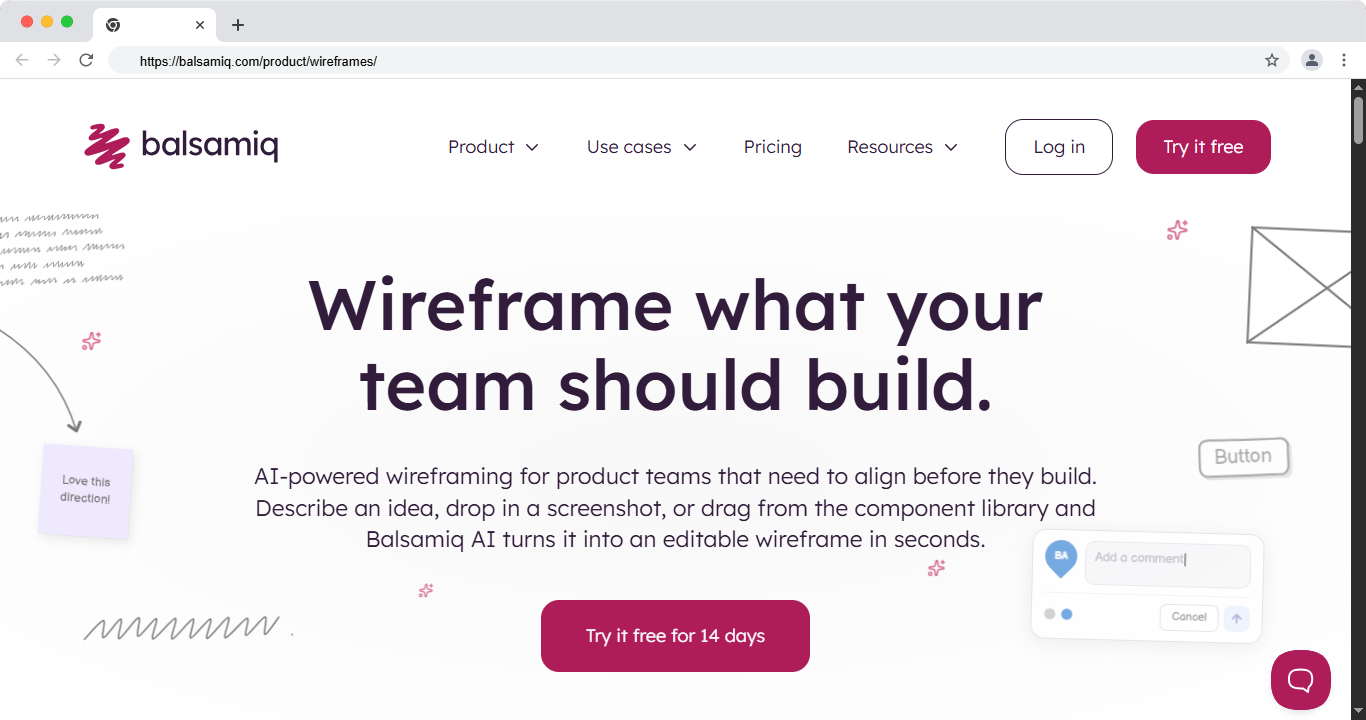
Balsamiq keeps things simple on purpose. Its sketch style looks rough, like pen on paper. That rough look is the point. It stops people arguing about colors and fonts too early. Instead, the team talks about layout, content, and flow. You can build a full set of screens in an afternoon.
It ships with a big library of pre-built UI parts. You drag in buttons, forms, and menus, then arrange them fast. Balsamiq works well for founders, marketers, and product teams in the idea stage. It is one of the best wireframe creation tools for early planning.
Key features:
- Low-fidelity sketch style that keeps focus on structure
- Large library of drag-and-drop UI parts
- Quick linking to click through basic flows
- Reusable symbols for repeated parts like headers
- Works in the browser or on desktop
Best for: quick, low-detail wireframes and early ideas. Free plan: No, but a 30-day trial is available. Price: From around $9 per month. Platform: Web, Mac, Windows.
- Pros: very easy to learn, fast for rough drafts.
- Cons: not built for detailed mockups or high-fidelity design.
3. Miro: Best for team workshops
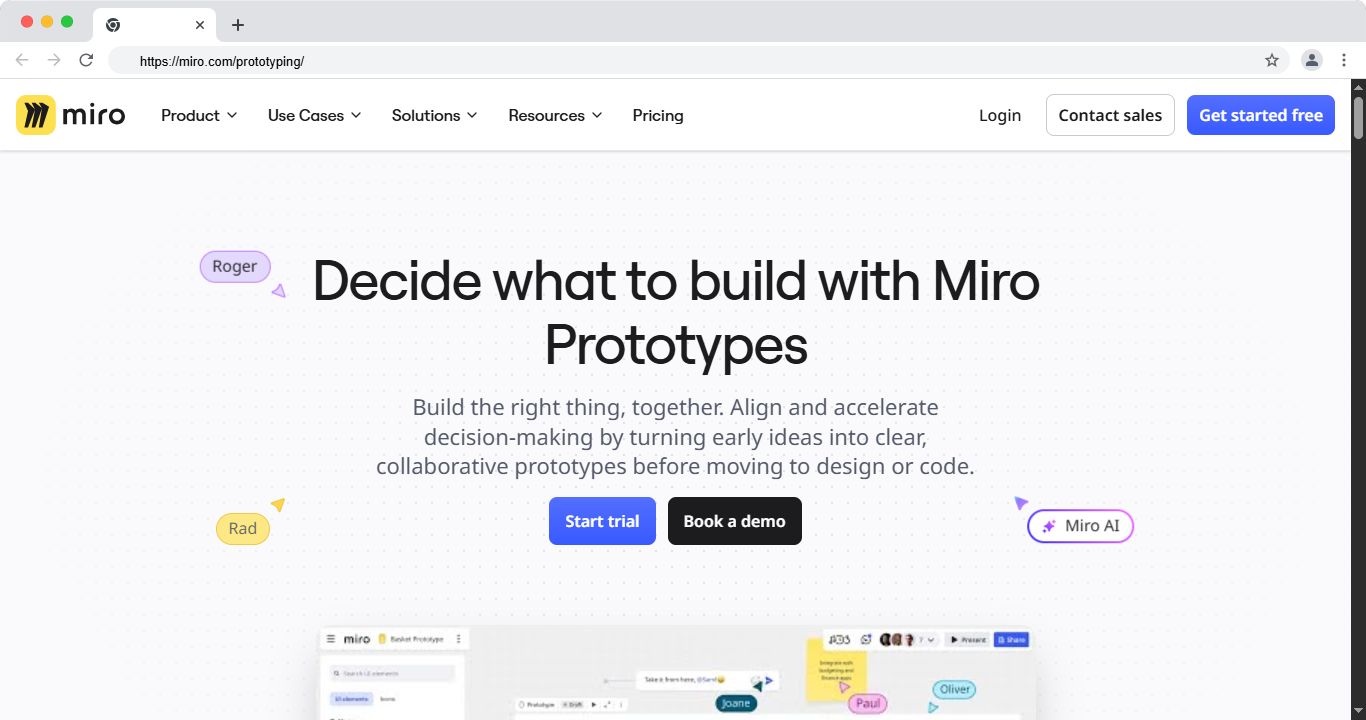
Miro is a large online whiteboard with wireframe kits built in. It shines when a whole team plans together in one space. You can sketch user flows, drop in UI parts, and leave sticky notes side by side. The canvas has no edges, so you map a full project on one board.
Miro fits workshops, remote teams, and early product planning. Many teams use it to run design sprints and gather feedback. It also owns Uizard, so AI wireframing now lives inside the platform. That lets you turn notes into screens without leaving the board.
Key features:
- Endless canvas for flows, wireframes, and notes
- Built-in wireframe and UI kits
- Live cursors and comments for remote teams
- AI wireframing through Uizard
- Templates for sprints, journeys, and planning
Best for: team workshops and wireframing on a shared board. Free plan: Yes. Price: Free plan, paid from around $8 per member per month. Platform: Web, Mac, Windows.
- Pros: great for group planning, endless canvas, AI tools.
- Cons: less precise than a focused design tool.
4. Visily: Best AI wireframing tool
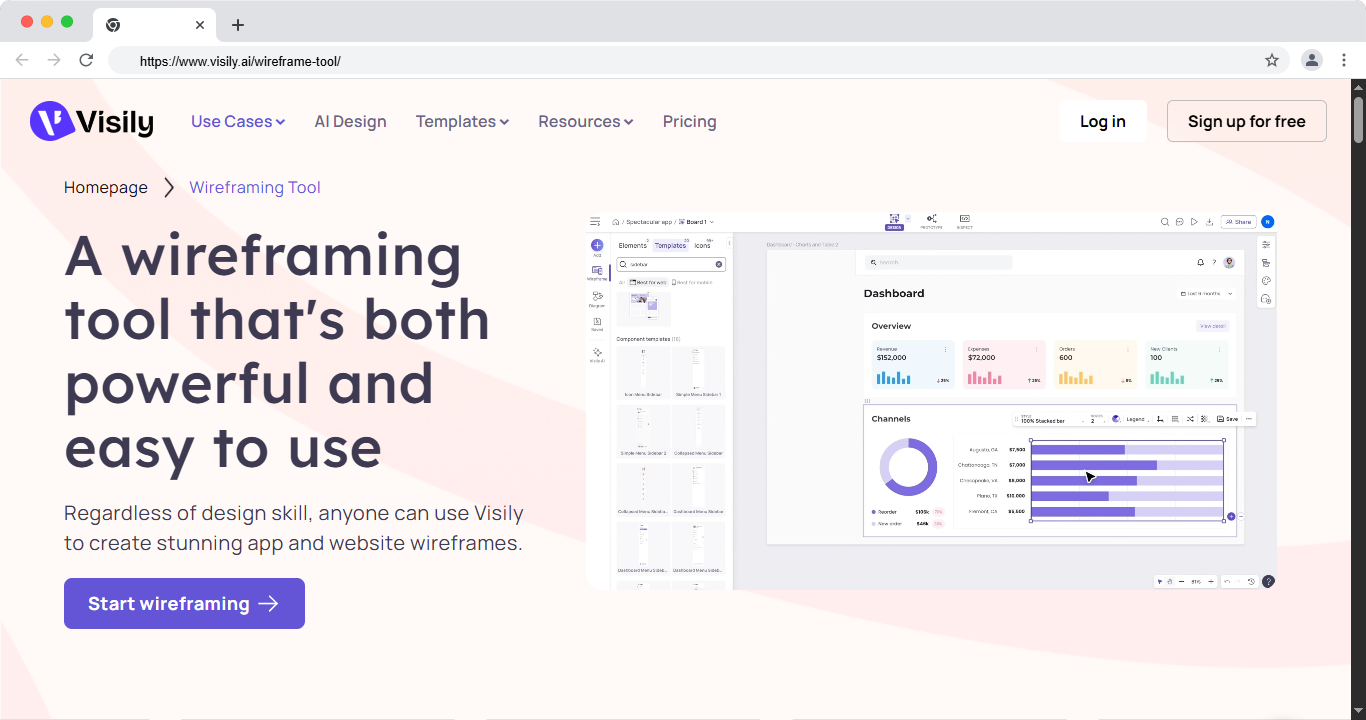
Visily is a fast-rising AI tool built for speed. You can type a prompt, upload a hand sketch, or drop a screenshot. Visily then builds an editable design from it. This helps people with no design training get clean prototyping design tools output in minutes.
The tool is a strong pick for founders, marketers, and product teams. You can start from a template or let the AI draft the first version. Then you edit the layout, swap text, and link screens into a prototype. It removes the blank-page problem that slows many projects.
Key features:
- Text prompt to design in seconds
- Screenshot and sketch to editable UI
- Ready templates for common app and web screens
- Simple editing with no design skills needed
- Basic prototyping to link screens
Best for: AI wireframing and turning screenshots into editable designs. Free plan: Yes. Price: Free plan, paid tiers available. Platform: Web.
- Pros: beginner friendly, powerful AI, good free plan.
- Cons: newer tool with a smaller community.
5. Uizard: Best for turning text or sketches into UI
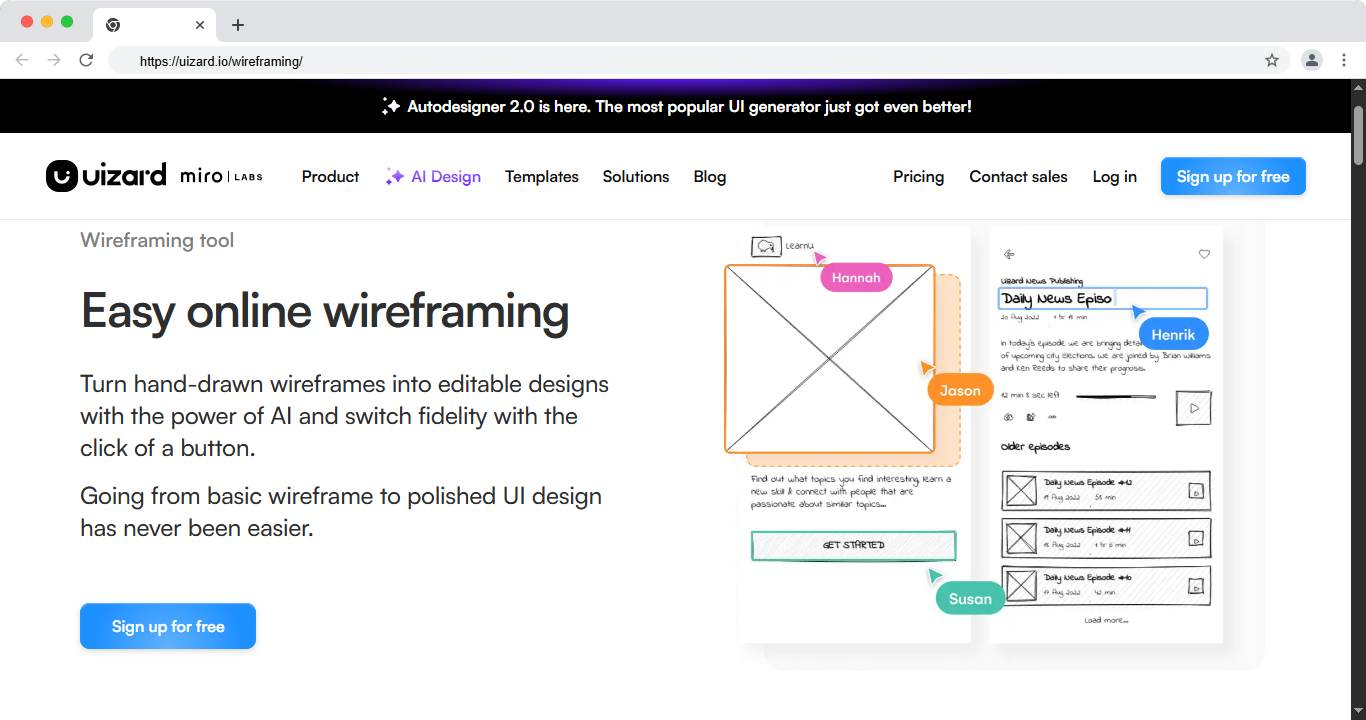
Uizard turns words and sketches into app and web screens. It was one of the first AI wireframing tools on the market. Miro acquired it in 2024, so its AI now supports a wider team workflow. You can scan a paper sketch and get a digital screen back in seconds.
It suits beginners who want speed over fine control. You describe an app, and Uizard drafts the screens and flow. Then you refine the parts that matter most. It is a good starting point, though the output usually needs a cleanup pass.
Key features:
- Text to UI and sketch to UI
- Screenshot scan to editable design
- Theme and style presets for a quick look
- Templates for apps, websites, and dashboards
- Now part of the Miro platform
Best for: AI-first wireframing and text to UI. Free plan: Yes. Price: Free plan, paid tiers available. Platform: Web.
- Pros: fast AI generation, easy for beginners.
- Cons: output often needs cleanup for final work.
6. Axure RP: Best for complex, logic-heavy prototypes
Axure is built for advanced, detailed work. You can add conditions, variables, and dynamic content to your screens. This lets you build prototypes that act like the real product. Enterprise and UX research teams rely on it for complex prototyping software tools needs.
The trade-off is a steeper learning curve. New users need time to master its logic and panels. But for large apps with many states, few tools match its depth. If you test detailed flows with real users, Axure earns its price.
Key features:
- Conditional logic, variables, and math
- Dynamic panels for interactive states
- Realistic forms and data-driven screens
- Documentation and specs for developers
- Team projects with shared libraries
Best for: complex, high-detail prototypes with real logic. Free plan: No, trial only. Price: From around $25 per month. Platform: Mac, Windows.
- Pros: deep prototyping power, great for complex apps.
- Cons: harder to learn, higher price.
7. Sketch: Best for Mac-only design teams
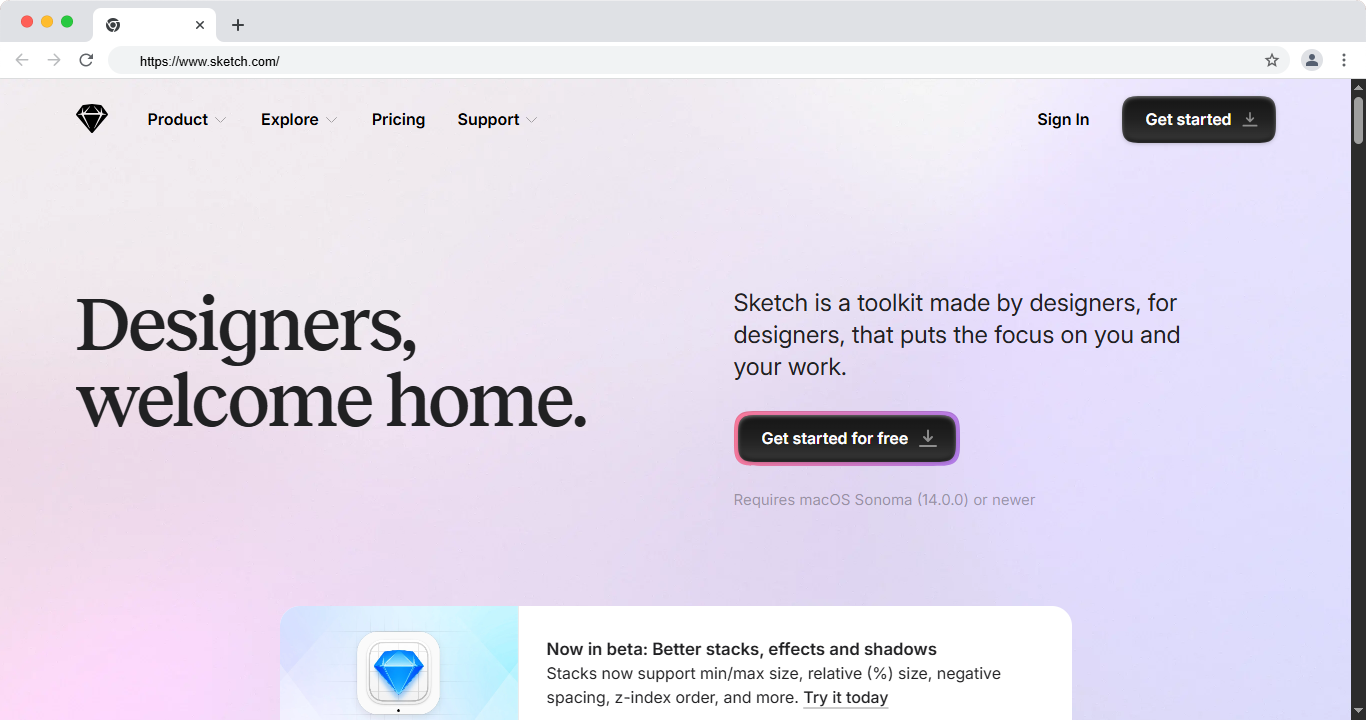
Sketch is a long-time favorite for interface design. It helped shape the modern design tool space. It works well for wireframes, mockups, and clean handoff. A large plugin library adds features for almost any task.
The main limit is the platform. Sketch runs on Mac only, with a web viewer for others. That makes it hard for mixed Mac and Windows teams. If your whole team uses Mac, it stays a solid, focused choice.
Key features:
- Fast vector design for screens and icons
- Reusable symbols and shared component libraries
- Large plugin ecosystem
- Web viewer for sharing and handoff
- Simple, focused interface
Best for: Mac users who want a focused design tool. Free plan: No, trial only. Price: From around $10 per month. Platform: Mac (web viewer for others).
- Pros: clean interface, strong plugin support.
- Cons: Mac only, no full Windows app.
8. Justinmind: Best for detailed interactive prototypes
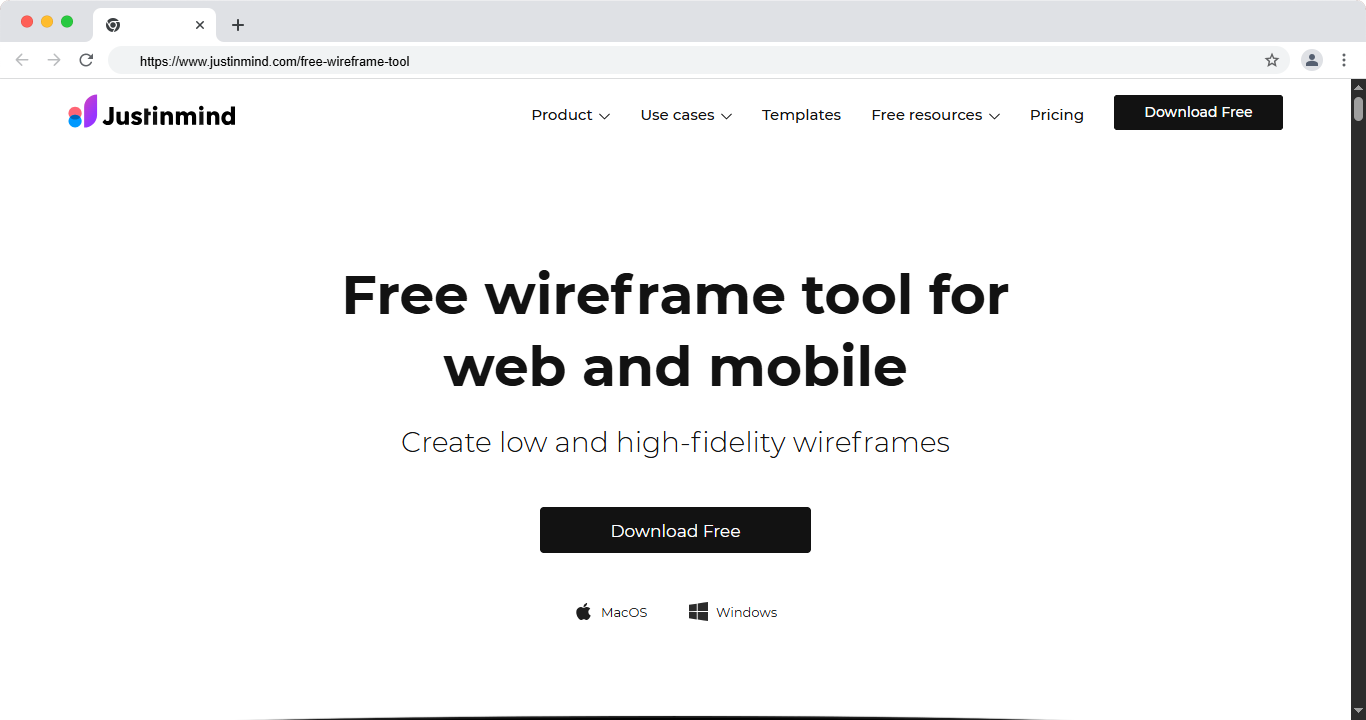
Justinmind mixes easy wireframing with strong prototyping tools ui features. You start with simple screens, then add real interactions on top. You can build forms, data lists, and gestures that feel like the real app. This makes it a good fit for teams that test with users.
It works for both web and mobile projects. A large widget library speeds up common screens. You can share a link and gather feedback in one place. Teams that need more than static screens get real value here.
Key features:
- Wireframes plus high-fidelity prototypes
- Real interactions, forms, and data grids
- Web and mobile widget libraries
- User testing and feedback tools
- Requirements and specs for teams
Best for: detailed web and app prototypes. Free plan: Yes. Price: Free plan, paid from around $19 per month. Platform: Web, Mac, Windows.
- Pros: rich interactions, good free plan.
- Cons: interface feels dated to some users.
9. Mockplus: Best for wireframes with developer handoff
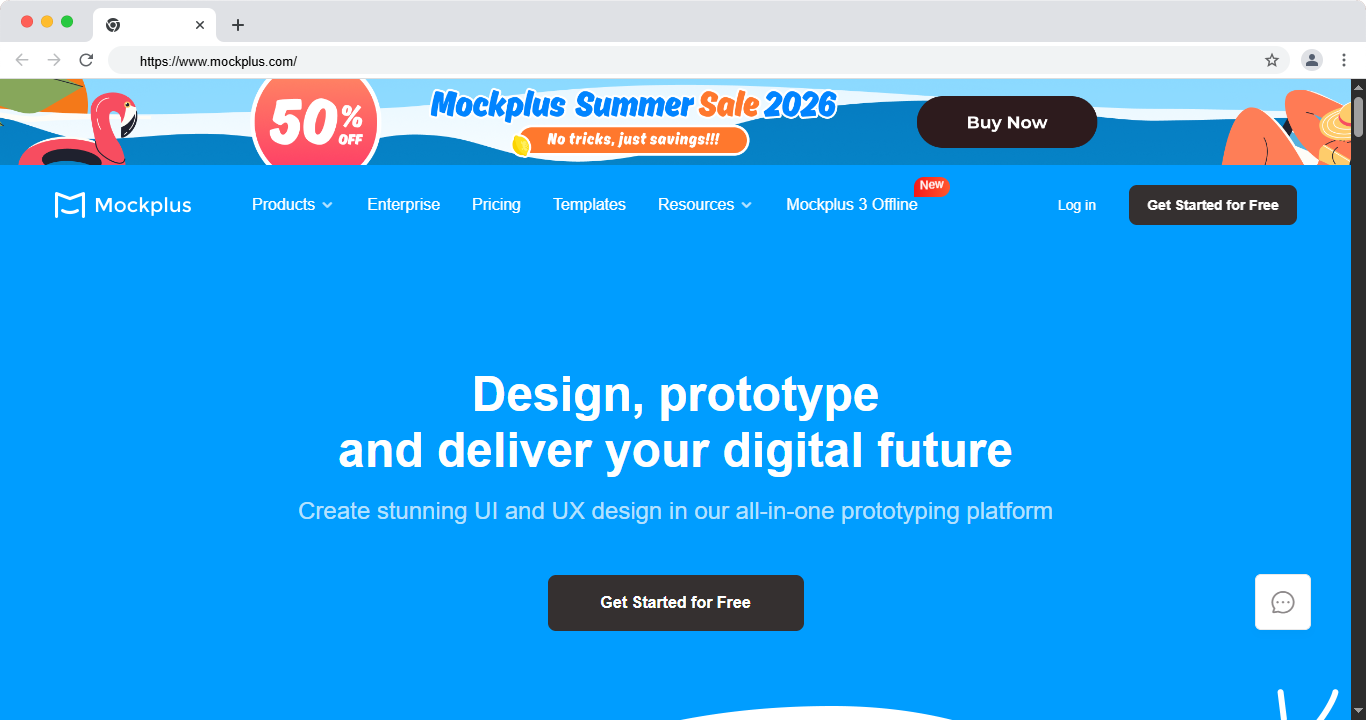
Mockplus covers wireframes, prototypes, and developer handoff in one app. It is quick to learn and does not overwhelm new users. Ready components and templates help you start fast. The free plan is enough for many early projects.
It works well for small teams that want a smooth path from idea to build. You can link screens, add basic interactions, and share for review. The handoff tools give developers the specs they need. This keeps the whole team on the same page.
Key features:
- Wireframes, prototypes, and handoff together
- Large library of ready components
- Pre-built templates for common screens
- Comments and review in one place
- Design specs for developers
Best for: simple wireframing plus design handoff. Free plan: Yes. Price: Free plan, paid tiers available. Platform: Web, Mac, Windows.
- Pros: easy to use, all-in-one workflow.
- Cons: advanced features sit behind paid plans.
10. Whimsical: Best for wireframes plus user flows
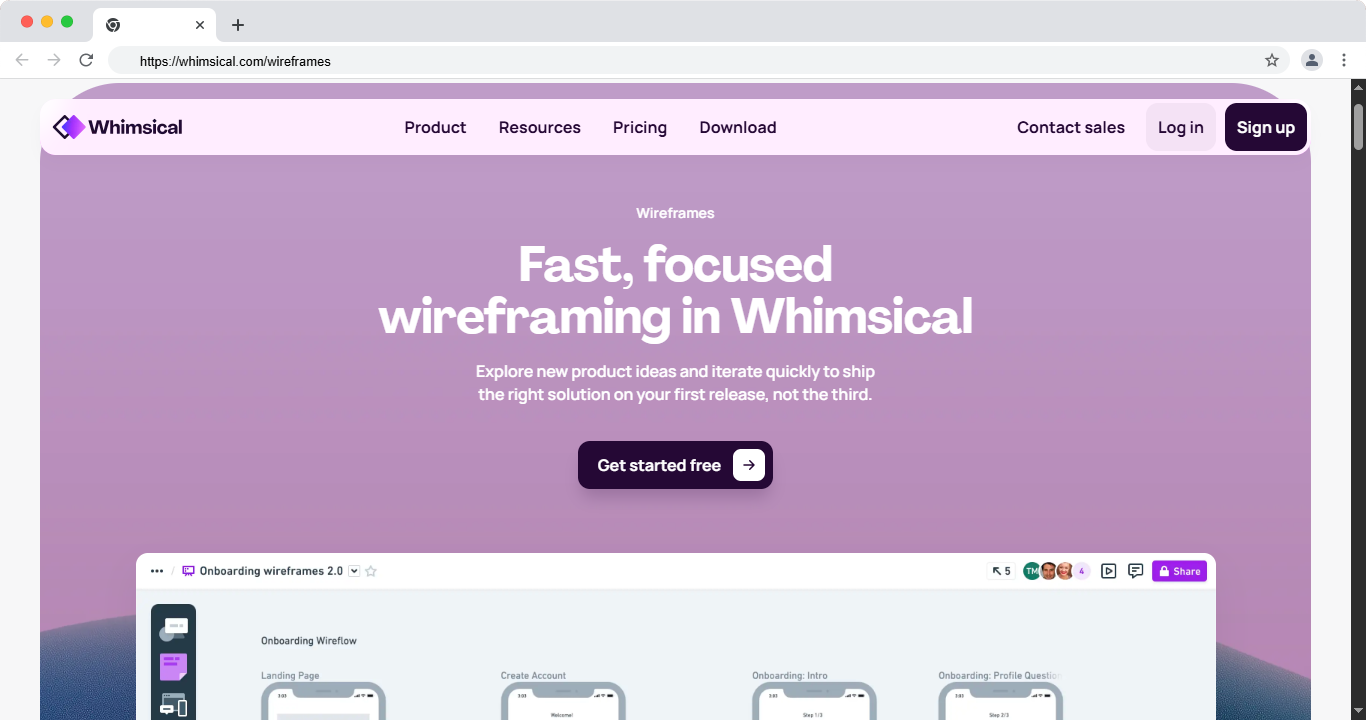
Whimsical is clean, fast, and easy on the eyes. You can draw wireframes, flowcharts, mind maps, and docs in one file. This mix makes it great for thinking through an idea. You map the flow, then sketch the screens next to it.
The tool keeps a simple, low-detail style. That helps teams plan without getting stuck on visuals. It loads fast and shares with a link. For early planning, it is one of the best good wireframing tools you can use.
Key features:
- Wireframes, flowcharts, and mind maps together
- Clean, low-detail style for fast planning
- Ready UI components for quick screens
- Docs and notes in the same space
- Simple sharing and comments
Best for: fast wireframes mixed with flowcharts and notes. Free plan: Yes. Price: Free plan, paid from around $10 per month. Platform: Web.
- Pros: simple, fast, nice for early planning.
- Cons: not made for high-fidelity design.
11. Moqups: Best simple online wireframing tool
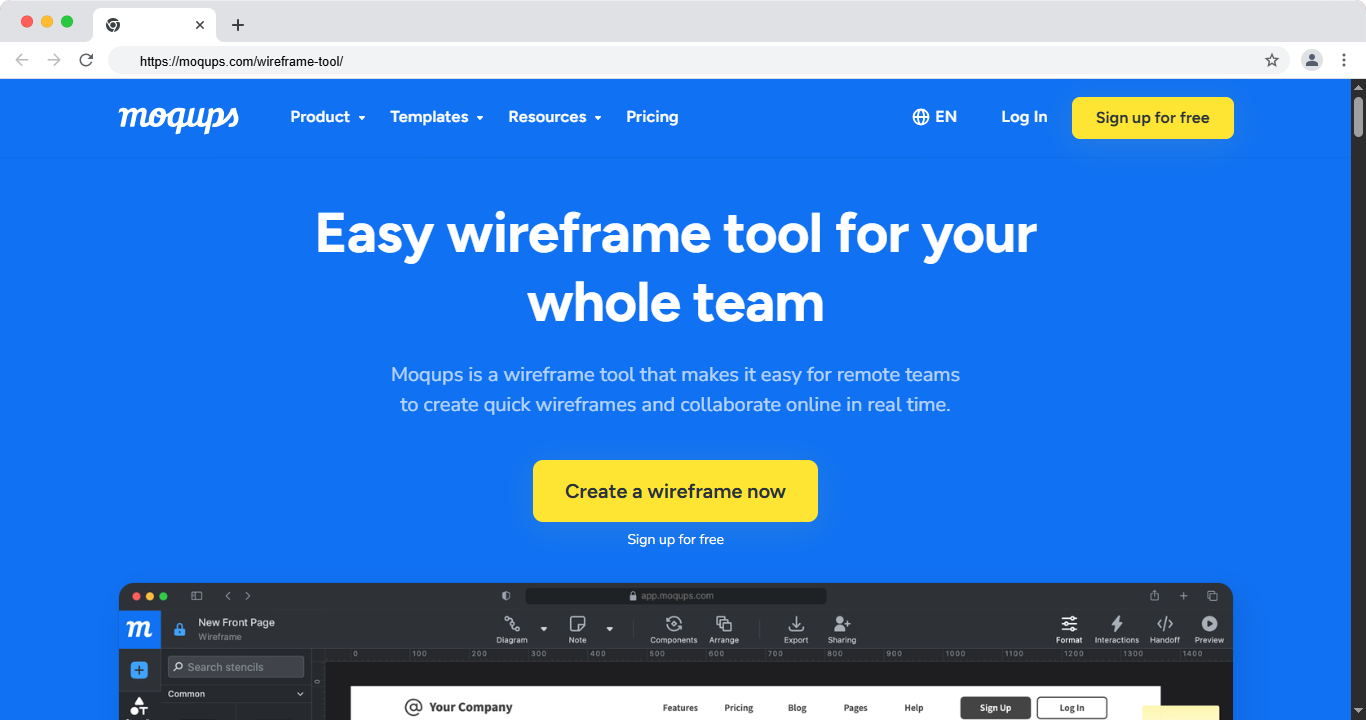
Moqups runs fully in the browser, so there is nothing to install. You get wireframes, diagrams, flowcharts, and simple prototypes in one app. It loads fast and works on any computer. This makes it a handy wireframing tools free online option for small jobs.
The app is easy to pick up, even for first-time users. You drag in stencils, link pages, and share a live link. Teams can comment right on the screens. The free plan fits small projects, while paid plans lift the limits.
Key features:
- Fully browser-based, no download
- Wireframes, diagrams, and flowcharts in one app
- Large stencil and icon library
- Live sharing and comments
- Simple click-through prototypes
Best for: online wireframing with no install. Free plan: Yes. Price: Free plan, paid tiers available. Platform: Web.
- Pros: no download, easy sharing.
- Cons: the free plan has object limits.
12. Penpot: Best free and open-source tool
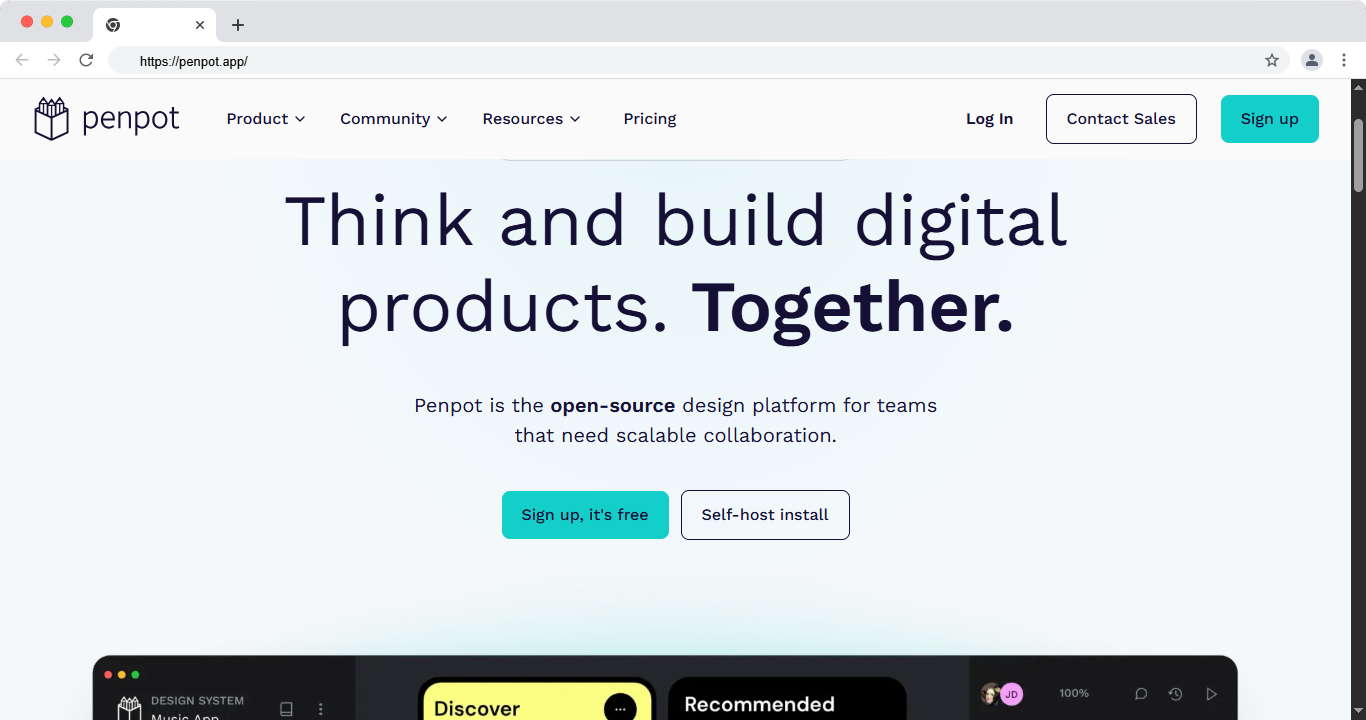
Penpot is the top free and open-source choice in 2026. It handles wireframes, design, and prototypes with no license cost. There are no seat limits, so a whole team can join for free. Teams that want full control can host it on their own servers.
It has grown fast as a Figma alternative. The tool uses open web standards, which keeps files portable. Designers and developers can work in the same space with less friction. For budget-aware teams, it is one of the best wireframe design tools free picks around.
Key features:
- Fully free and open source
- No seat limits for teams
- Wireframes, design, and prototyping
- Self-host option for full control
- Built on open web standards
Best for: free and open-source design for any team. Free plan: Yes, fully free. Price: Free. Paid support for larger teams. Platform: Web, self-host.
- Pros: free, open source, no seat limits.
- Cons: smaller template library than Figma.
Comparison Table: Best Wireframing Tools 2026
Prices change often, so check each site for current plans.
Best Free Wireframing Tools
On a tight budget? These are the best best wireframing tools free options this year:
- Figma: strong free plan for individuals and small teams.
- Penpot: fully free and open source, with no seat limits.
- Miro: free plan with wireframe kits and AI.
- Whimsical: free plan for quick wireframes and flows.
- Moqups: free online plan for small projects.
- Visily: free AI plan that turns prompts into screens.
Each of these gives you real value with no upfront cost. Start free, then upgrade only if you outgrow the plan.
AI Wireframing Tools Are Changing the Process
AI is now a big part of wireframing. Tools like Visily and Uizard build screens from a text prompt or a screenshot. Figma added AI to create a first draft layout in seconds. This helps founders and marketers create popular wireframing tools output without design skills.
AI is a great starting point. Still, review and edit every result. The best work comes from human judgment on top of AI speed.
A Note on Tools to Skip in 2026
Two names still appear in old lists. Here is the current status:
- InVision shut down its core product in late 2024. Do not start new projects there.
- Adobe XD is now a legacy tool. Adobe no longer sells it on its own or adds new features. Most teams have moved to Figma.
From Wireframe to Live Website
A wireframe is only step one. The real value comes when you turn it into a fast, working site. Our Webflow development agency turns wireframes into fast, production-ready sites. Many teams stall at handoff, where a design sits in a file and never ships.
That is the gap we close. theCSS Agency turns your wireframes and designs into a live Webflow site. You get clean structure, fast load times, and an easy content system. If you have a wireframe ready, we can build it. Book a call to talk about your project.
How to Choose the Right Wireframing Tool
Match the tool to your needs with this quick guide:
- Solo founder or small team: start with Figma or Visily.
- Fast rough ideas: use Balsamiq or Whimsical.
- Group planning: pick Miro.
- Complex app logic: choose Axure RP or Justinmind.
- Zero budget: go with Penpot or Figma free.
- AI-first speed: try Visily or Uizard.
There is no single best tool for everyone. The right pick depends on your budget, team, and detail level.
Conclusion
The best wireframing tools in 2026 give you a fast way to plan before you build. Figma leads for all-around work. Balsamiq wins for speed. Penpot is the top free choice. Visily and Uizard show where AI is taking the field.
Try two or three free plans first. Then pick the one your team enjoys using. Once your wireframe is ready, the next step is a real, fast website that ships.
Need help turning a wireframe into a live Webflow site? See how theCSS Agency builds Webflow sites for SaaS and B2B brands.
FAQs
1. What is the best wireframing software in 2026?
Figma is the best all-around choice, with a free plan and design in one place. Balsamiq is best for quick, low-detail wireframes. Penpot is the top free and open-source option.
2. What are the best free wireframing tools?
Figma, Penpot, Miro, Whimsical, Moqups, and Visily all offer strong free plans. Penpot is fully free with no seat limits.
3. What is the difference between a wireframe and a prototype?
A wireframe is a basic layout in gray boxes. A prototype is a clickable version that shows how the product works. Most tools support both stages.
4. Are there AI wireframing tools?
Yes. Visily and Uizard build screens from a text prompt or a screenshot. Figma also added AI to create a first draft layout.
5. Do I need paid wireframing software?
No. Free plans from Figma, Penpot, and Miro cover most early projects. Upgrade only when you need more space, seats, or advanced features.
6. Which wireframing tool is best for beginners?
Balsamiq, Visily, and Whimsical are the easiest to learn. You can build a basic screen in minutes with any of them.
7. Can I use a wireframe to build a website?
Yes. A wireframe is the plan for your site. A team like theCSS Agency can turn that wireframe into a live Webflow website.
8. Is Figma still free in 2026?
Yes. Figma keeps a free plan for individuals and small teams. Paid plans add more editors and features.